---
title: "Table functions"
url: "https://help.baramundi.cloud/en/article/table-functions"
language: "en"
last_updated: "2026-10-12T10:18:34.808Z"
---
# Table functions
**Note:**
Not all functions are available in every table!
| Icon | Table action | Description |
| --- | --- | --- |
|  | Time frame | Select the time frame relevant for the data from the drop-down menu in the upper-right corner of the Proactive Hub app. This period applies to several areas of the analysis at the same time. |
|  | Sorting | Sort the data in descending or ascending order by clicking on the respective column header or on the small arrow to the right of the column header. |
|  | Filter | If there is a filter icon in front of the column heading, this column contains a filter option (free text or selection): Click on the filter icon and search within the selected column for words or parts of words, or select from the options provided. |
|  | Export to Excel | Export the current table data to Excel (.xlsx):
- Only the currently selected columns and filter configurations are exported. If you have deselected certain columns or activated filters, this will be taken into account in the export (what you see is what you get).
- The order is exported as selected.
- All results from the entire table (all table pages) are always output.
- **Please note:** If grouping is activated, Excel export is not possible. You will receive a notification. |
|  | Group by category | Use this function to group the table entries according to the selectable categories. |
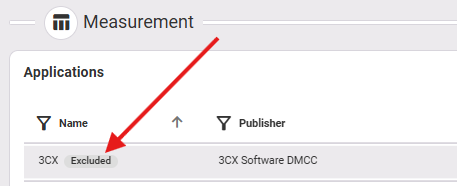
|  | View excluded applications | Switch here depending on whether you want to display the excluded applications in this environment in the table or not. Displayed excluded applications are marked with a note next to the application name:
 |
|  | Column selection | This option allows you to show or hide columns and change the column order. |
|  | Table size | Adjust the table size to suit your needs, up to a maximum of 50 rows visible at a time. All entries above this number can be accessed by scrolling within the table. |
|  | Reset view | This function resets the following settings that you have set individually: filtering, sorting, grouping, table size. Individual column settings are not affected. You can reset these by navigating to the column settings via **Column selection**. |
|  | Three-dot menu (on the right of each row) | The three-dot menu on the right-hand side of the line offers the following options:
- **Open** the endpoint/application (in the same window)
- **Open** the endpoint/application **in a new tab**
- Open the endpoint with **Open in baramundi Management Center** (only for endpoints that have a baramundi Management Agent installed or are managed via the baramundi Management Suite), see also [Endpoints](https://docs-staging.baramundi.com/helpsetid=m_t_usability-and-ui&externalid=proactive-hub_endpoints&Language=en-us)
- **Connect via baramundi Remote Desk** to the endpoint (only for endpoints that have a baramundi Management Agent installed or are managed via the baramundi Management Suite), see also [Endpoints](https://docs-staging.baramundi.com/helpsetid=m_t_usability-and-ui&externalid=proactive-hub_endpoints&Language=en-us)
- **Forward feedback** (only available in the "User Feedback" tab)
- **Exclude application** or **Display excluded application**
If the application is already excluded, the option **Display excluded application** appears. This allows you to view details of the exclusion and reactivate the application.
If the application is not excluded, you can use **Exclude application** to exclude it from the calculation of the stability data. Please also note the information here: [Manage Excluded Applications](https://docs-staging.baramundi.com/helpsetid=m_t_administration&externalid=proactive-hub_administration_manage-excluded-applications&Language=en-us) |