
Security (Preview)
Usage
Use the Security section to identify and prioritize security-related risks in your environment early on. You can see at a glance which applications are affected by known vulnerabilities, for which vulnerabilities known exploits exist, and where updates are available to minimize risk. This allows you to specifically identify particularly critical risks and take appropriate action.
Note
To view the Security feature, you need the baramundi Proactive Hub Advanced license.
First, select your active environment in the upper-right corner. All environments to which you have access are available.
The magnifying glass icon at the top provides access to a global search function.
Overview

The overview tile shows you the following aggregate figures within your environment:
- Applications at high or critical risk
- Expoitable applications
- Updateable applications
Risk level and Exploit status
There are four risk levels on a scale of 0–100:
- Low (0–39)
- Medium (40–69)
- High (70–89)
- Critical (90–100)
Software with no known vulnerabilities is also classified as risk level “Low” since all software has potential (and possibly as yet unknown) vulnerabilities.
The exploit status describes the extent to which the (known) vulnerability is being exploited. There are indications that the vulnerability is either already being actively exploited or that a “proof-of-concept exploit” has been published. We distinguish between the following statuses:
- Known exploit
- No known exploit
Measurement
In the Measurement section, you’ll see all applications in your selected environment listed, sorted by default by the highest risk level. Here you'll find an explanation of the table functions.
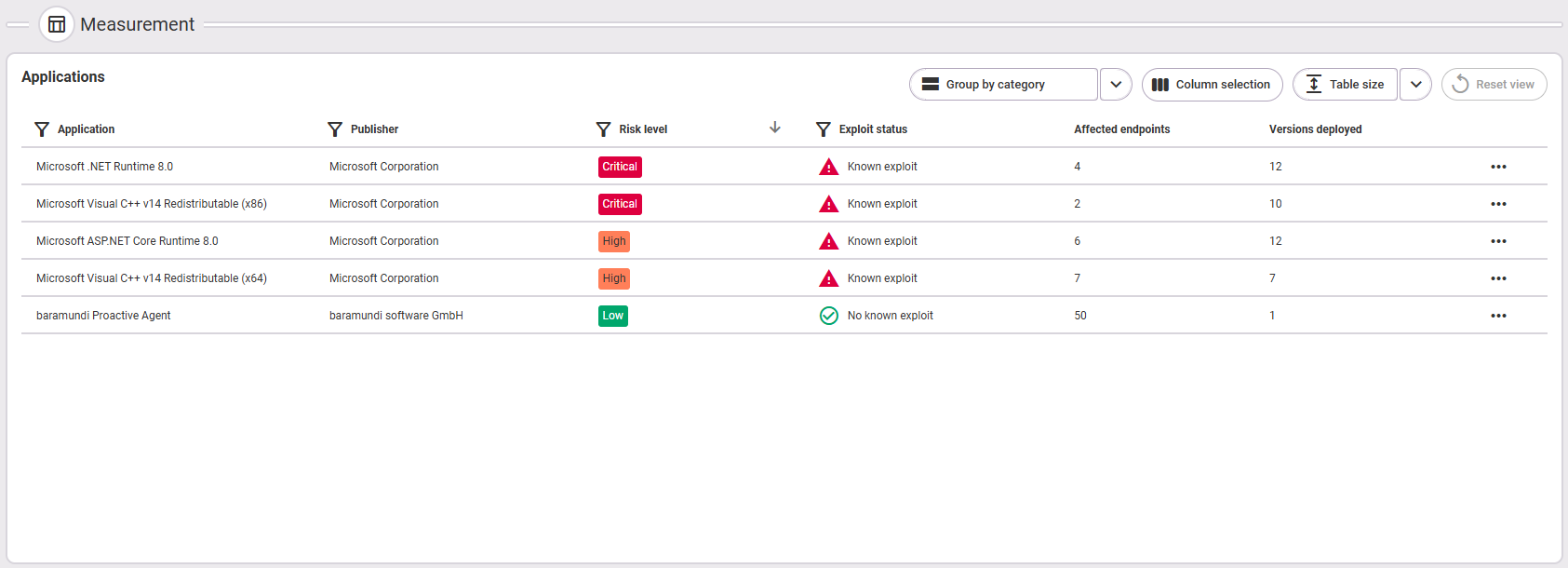
The following information is available:
- Application name
- Publisher (of the application)
- Risk level (Low, Medium, High, Critical)
- Exploit status (Known exploit or No known exploit)
- Affected endpoints (number)
- Deployed versions (number)
Analysis
Vulnerable applications with update available
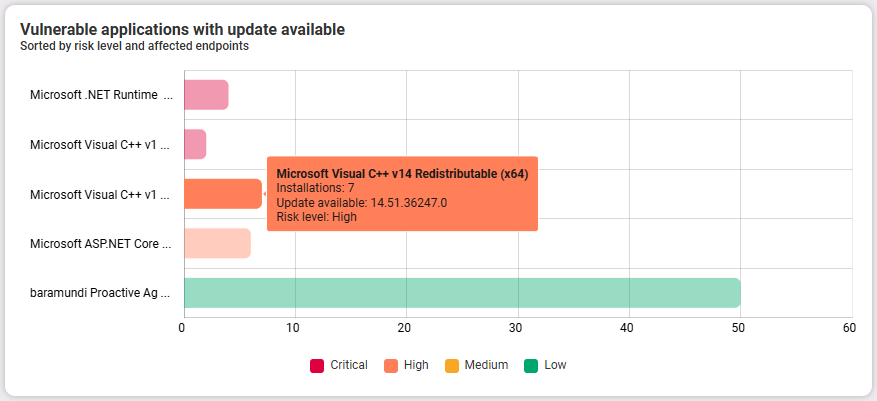
This chart lists all applications and sorts them by risk level. The length of the bars indicates the number installations (and therefore potentially affected endpoints). The tooltip displays the following information:
- Application name
- Installations (number, across all endpoints in the selected environment)
- Update available
- Risk level