Table functions
Icon | Table action | Description |
|---|---|---|
Time frame | Select the time frame relevant for the data from the drop-down menu in the upper-right corner of the Proactive Hub app. This period applies to several areas of the analysis at the same time. | |
Sorting | Sort the data in descending or ascending order by clicking on the respective column header or on the small arrow to the right of the column header. | |
Filter | If there is a filter icon in front of the column heading, this column contains a filter option (free text or selection): Click on the filter icon and search within the selected column for words or parts of words, or select from the options provided. | |
Export to Excel | Export the current table data to Excel (.xlsx):
| |
Group by category | Use this function to group the table entries according to the selectable categories. | |
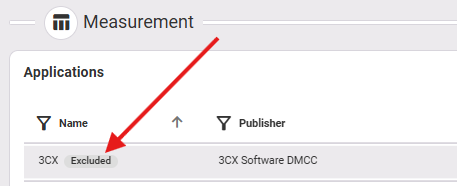
View excluded applications | Switch here depending on whether you want to display the excluded applications in this environment in the table or not. Displayed excluded applications are marked with a note next to the application name: | |
Column selection | This option allows you to show or hide columns and change the column order. | |
Table size | Adjust the table size to suit your needs, up to a maximum of 50 rows visible at a time. All entries above this number can be accessed by scrolling within the table. | |
Reset view | This function resets the following settings that you have set individually: filtering, sorting, grouping, table size. Individual column settings are not affected. You can reset these by navigating to the column settings via Column selection. | |
Three-dot menu (on the right of each row) | The three-dot menu on the right-hand side of the line offers the following options:
|