
OS Updates (Preview)
Usage
Use the OS Updates section to centrally monitor the update status of your endpoints and identify outdated systems early on. At a glance, you can see which endpoints are no longer up to date, which feature updates have reached the end of their lifecycle, and where action is needed. In addition, you can specify whether Windows updates should be managed and automatically applied by Proactive Hub.
First, select your active environment in the upper-right corner. All environments to which you have access are available.
Use the magnifying glass icon at the top to access a global search function.
Overview
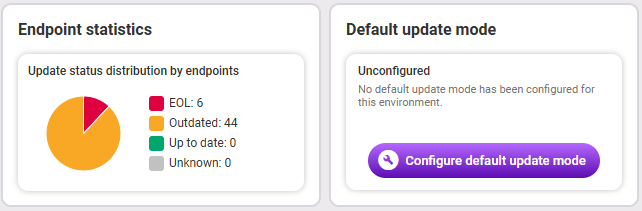
The overview tiles show:
- Endpoint statistics:
The first tile shows the total number of End-of-life feature updates currently available.
The second tile shows the Update status distribution. There are four distinct statuses: - EOL (end-of-life): The endpoint’s feature update is out of date and no longer supported.
- Outdated: The endpoint is missing the latest quality update.
- Up to date: All updates are up to date. No available quality updates were found.
- “-”: Unknown (No status was reported to us.)
- Default update mode:
Proactive Hub and Proactive Agent use the update mode to manage Windows updates on the endpoints. The mode can be set
The tile showing the default update mode indicates whether a default has already been set for the selected environment.
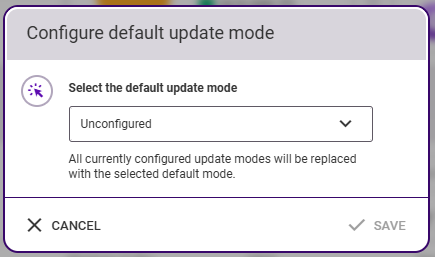
Select Configure default update mode to set an update mode for all endpoints.
The following options are available:
Note: Configuring a default update mode for the entire environment has two effects: - as the default for all endpoints in the environment
- and individually directly on the endpoint.
- Enforced: Proactive Hub frequently checks whether quality updates are available on the endpoints and ensures that they are installed immediately. Select this mode if you either do not yet have an OS update management solution or if you want to speed up the installation of security-related quality updates.
- Unconfigured: Proactive Hub does not manage Windows updates. Select this mode if you already have an existing OS updates management solution in place. Proactive Hub will still collect data and can be used for monitoring purposes.
- The newly selected update mode is applied to all endpoints that have not yet been configured.
- The newly selected update mode becomes the default mode for the environment. This means that newly registered endpoints are immediately configured with this update mode.
Information about updates and status
Quality updates:
Quality updates are frequent, small- to medium-sized updates for the Windows operating system that fix issues and security vulnerabilities or provide minor new features. An endpoint with the latest quality update is considered up to date, while endpoints without the latest quality update are considered out of date. Microsoft regularly releases a quality update on the second Tuesday of every month (“Patch Tuesday”). These updates are named after the month in which they were released. Additional updates may be released outside of this fixed cycle. These updates are referred to as out-of-band. If an out-of-band update is installed on the endpoint, it is marked as “OOB” in the tile.
Feature updates:
Feature updates are major updates for the Windows operating system that typically provide several new features. Microsoft releases about one to two such updates each year. If the latest feature update is not installed, this does not necessarily mean that the endpoint is outdated. However, it will not have access to the latest features. In addition, support for older feature updates may be discontinued. If this is the case, it is indicated by the EOL (end-of-life) label in the tile. It is recommended to update endpoints whose feature update has EOL status to the latest available feature update.
Note
Regardless of the Microsoft update cycle and the type of update (feature update or quality update), it is recommended that you always install the latest update.
Measurement
In the Measurement section, you’ll see all endpoints in your selected environment listed, sorted by default by endpoint name. Here you'll find an explanation of the table functions.
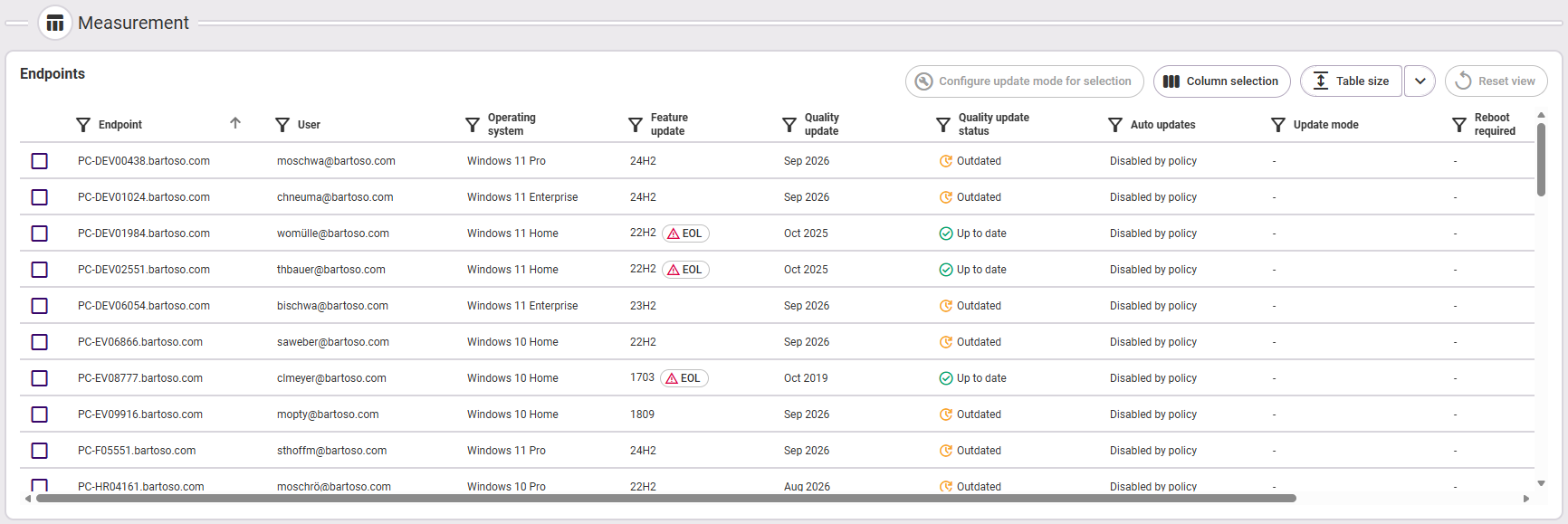
The following information is available:
- Endpoint name
- User name (of the endpoint)
- Operating system (of the endpoint)
- Installed feature update
- Installed quality update
- Quality update status (Up to date, Outdated)
- Auto-update mode (Disabled by policy, Paused by policy, Paused by user, Enabled, “-”)
- Update mode (Enforced, “-”)
- Reboot required
- Last inventory (time)
Configure update mode for selection: If you want to change the update mode for multiple selected endpoints at the same time, use the checkboxes on the left side of the table to select the desired endpoints, and then click the button to set the mode for this selection.