Managed Applications
Overview

The overview tile shows you at a glance:
- Managed applications: Number of applications managed on the endpoint
- Last application inventory: Time of the last application inventory on the endpoint
Measurement
In the Measurement section, you will see all managed applications configured or installed on the selected endpoint. Here you'll find an explanation of the table functions.
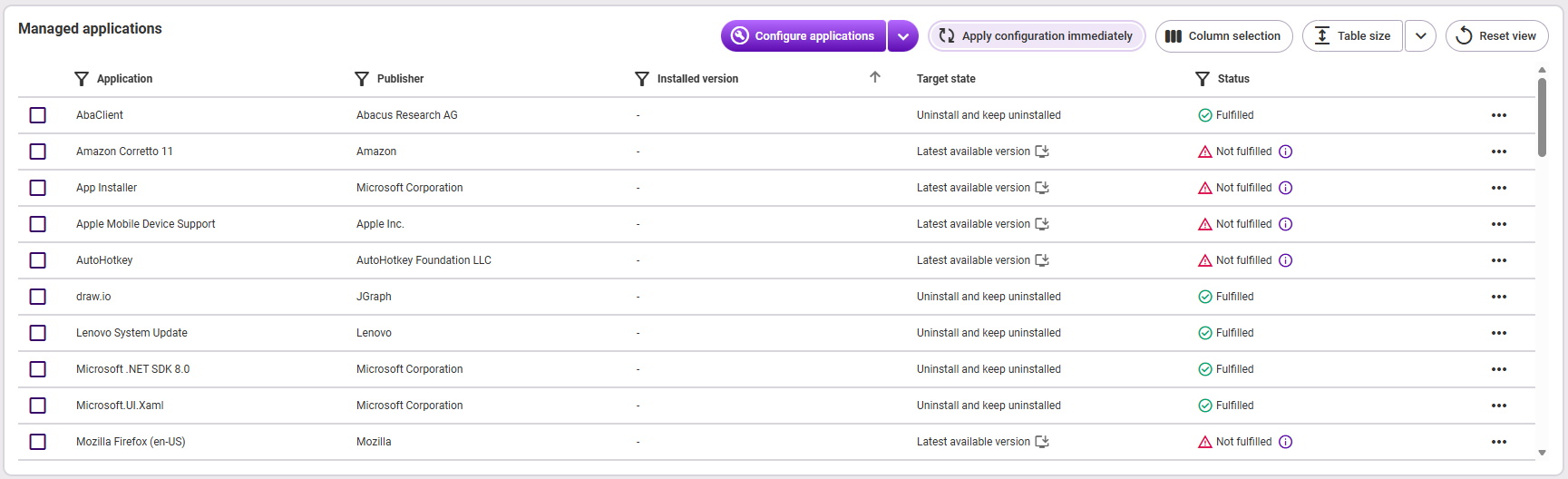
- Application name
- Publisher (the publisher of the application stored in the application catalog)
- Installed version (application version installed on the endpoint; Note: External automatisms may cause a newer version to be installed than the one released in the baramundi catalog. This is not a malfunction, but expected behavior, see Latest available application version)
- Target state: The application state to be achieved and maintained on the endpoint; available target states:
- Uninstall and keep uninstalled: Using this function, the Proactive Agent ensures that an application is automatically removed from the endpoint. The initial uninstallation of the application takes place via the Proactive Agent during the next synchronization cycle (every 12 hours or immediately via the button Apply configuration immediately). If a user or administrator installs the application manually again, it will be automatically uninstalled again by the agent. The "Status" column shows "Fulfilled" upon successful uninstallation. Notes: (1) This target state does not prevent installations in real time. (2) The state is not applicable to the Proactive Agent. (3) The state is only available for selected applications, not for the "Configure all" option.
- Keep on latest available version: The application is automatically updated to the latest available version, if not already done. If a new version is available in the catalog, it will also be installed automatically. Checking for and installing available updates takes place locally on the endpoint when starting the Proactive Agent and automatically every 12 hours thereafter.
- Set no target state: This state is indicated by a "-". It means that the application is not modified by baramundi Proactive Hub. Neither automatic updates nor (un)installations are performed.
- Status: If a target state is configured for an application package, you can see from this column whether the implementation of the target state was successful. The following statuses exist:
- Waiting for endpoint: Implementation will take place in the next 12 hours, provided the endpoint is reachable.
- Fulfilled
- Not fulfilled
Action button: Configure applications
Via this button you have the option to perform the following actions:
- Configure selected (To do this, first select the desired application(s) via the boxes on the left in the table.)
- Configure all (affects all applications managed on the endpoint)
- Add application configuration
Instructions for configuring applications:
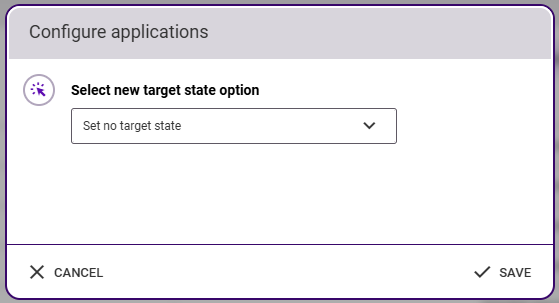
To configure the target state for one, several or all applications, use the function "Configure selected" or "Configure all".
- Select the desired new target state: Uninstall and keep uninstalled, Keep at latest available version, or Do not set target state. Note: If the option "Configure all" is selected, "Uninstall and keep uninstalled" cannot be used as a target state to minimize the damage of an accidental misconfiguration.
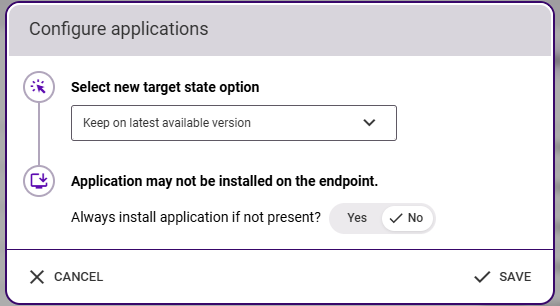
- If you select the option Keep at latest available version, the following window appears. Use the toggle button here to decide whether an application package that is not yet installed on all affected endpoints should be automatically installed by Proactive Hub. If you select this option, the corresponding application will also be automatically reinstalled if the endpoint user uninstalls the application.
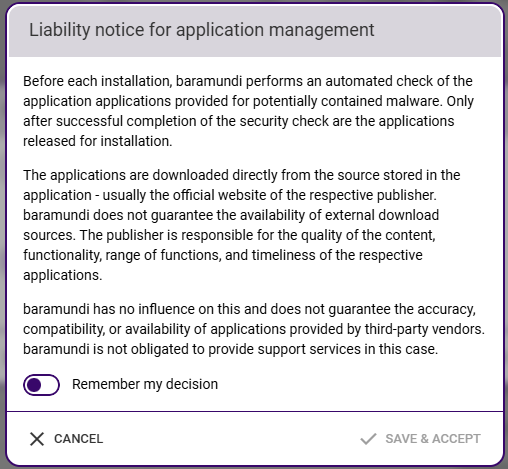
- Before saving the new target state, we refer to our liability notice for application management.
- Then click Save & Accept. After a target state has been saved, it can take up to 12 hours for it to be implemented accordingly on the endpoint. This requires the endpoint to be online.
Add application configuration
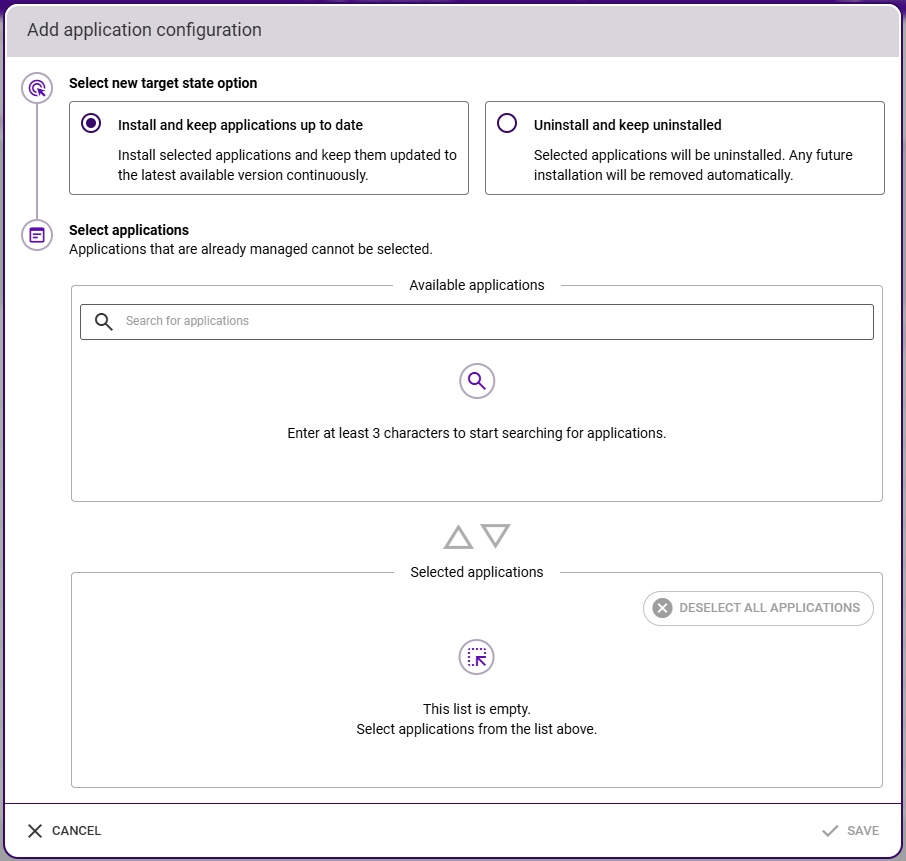
If you want to add applications or permanently uninstall them (coming soon), select this option and the "Add application configuration" window will open:
- Choose between:
- Install and keep applications up-to-date
- Uninstall and keep uninstalled
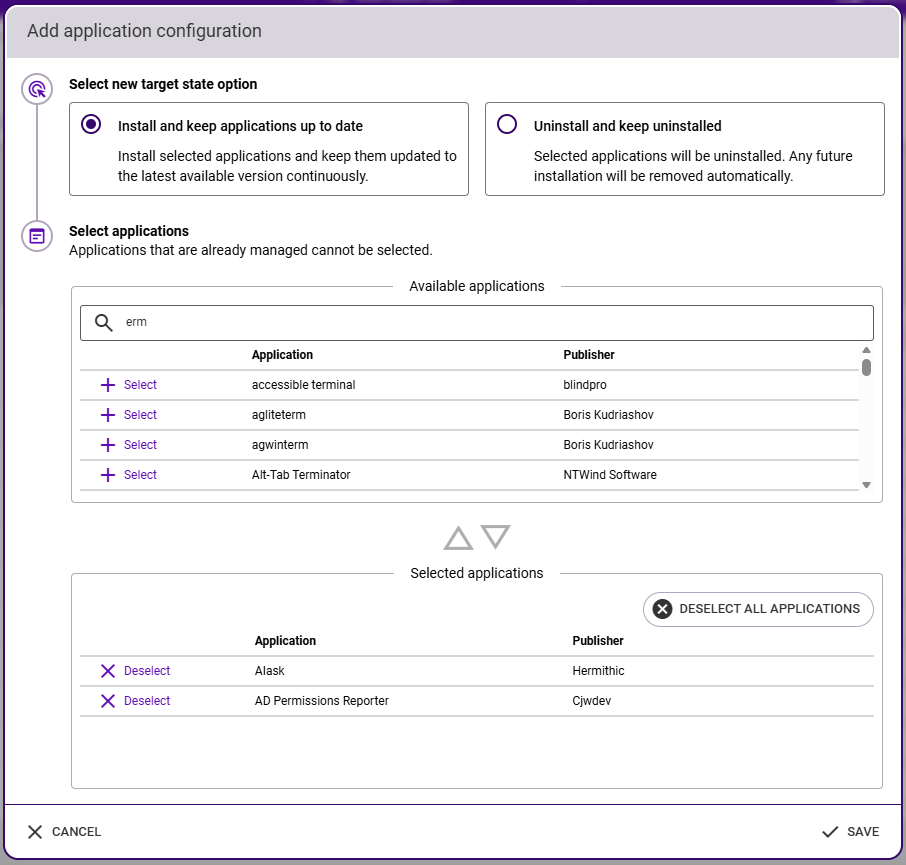
- Enter the name or the first three letters of the software package or vendor you want to select in the search bar. Results are sorted by application name (case-insensitive). Applications already managed on the endpoint are grayed out and cannot be selected.
- Select all required applications from the list using + Add and scroll down to the Selected Applications section. Here you can deselect incorrectly selected applications or Deselect all applications.
- When your selection is complete, confirm with Save.
- Before saving the new target state, we refer to our disclaimer for application management.
- Then click Save & Accept. After saving, it may take up to 12 hours for the software to be installed on the endpoint. This requires the endpoint to be online.
Note
Via Add applications, only the latest application version can be distributed.
Action button: Apply configuration immediately
During regular operation, the baramundi Proactive Agent checks after startup and then every 12 hours whether the configuration for the endpoint in question has been updated and automatically executes any pending actions (e.g. installation of an update). In individual cases, it may be useful or necessary for an endpoint to react immediately to configuration changes, for example to test an update without having to wait. The action "Apply configuration immediately" serves this purpose. It can be used per endpoint once every 30 minutes.
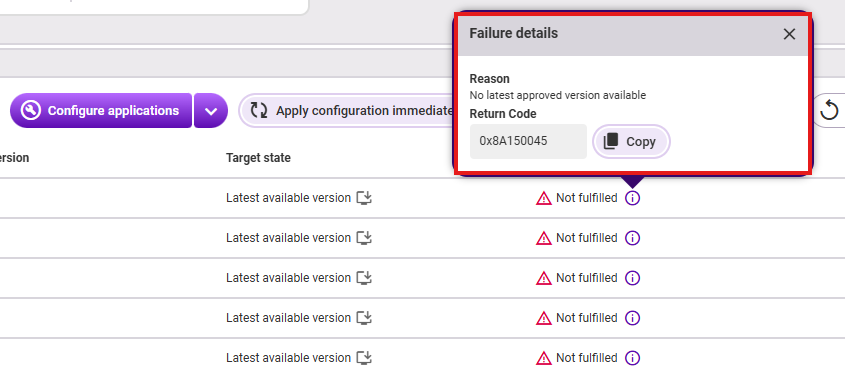
Failure details for status "Not fulfilled"
If an application has the status "Not fulfilled", you can view the error details by clicking on the i icon in the table row in the column Status You will receive here:
- the reason why the target state was not fulfilled
- the return code for copying
- the corresponding error message