Usage
The browser extension allows you to call up information on endpoints directly in supported applications. Proceed as follows:
Quick Start
- Download the browser extension (see chapter “Overview”), install it and activate it. You can find information on this in the documentation for the browser you are using.
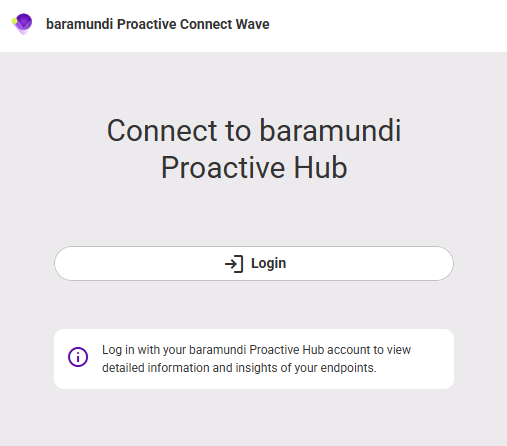
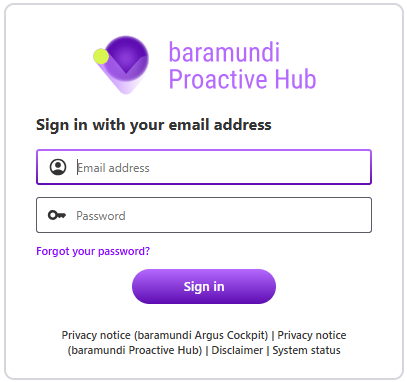
- Open the browser extension and click Login: If you are already logged into Proactive Hub, login takes place via Single Sign-On (SSO). Otherwise, log in with your username and password.
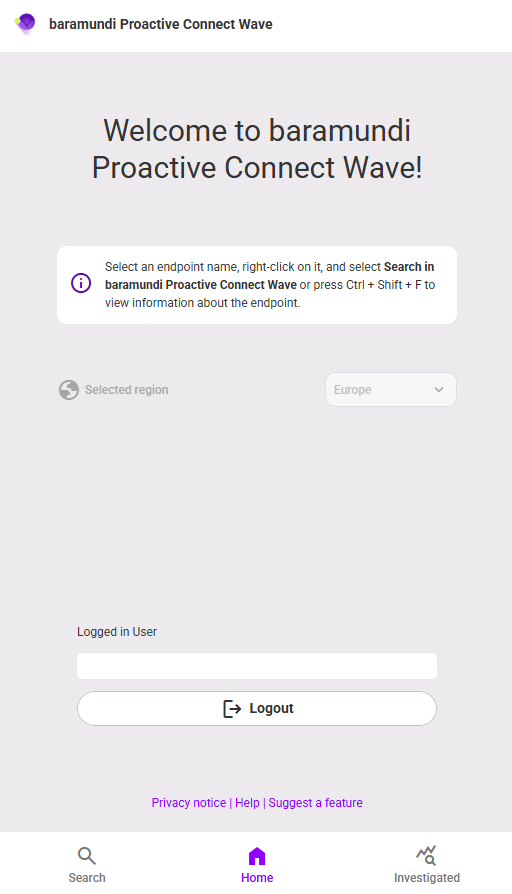
- You will be redirected to the home screen. If you use environments in multiple regions, select the region you want to manage (Europe or USA).
- Open the website of your ITSM, helpdesk, inventory or other supported system in your browser.
- Right-click on a hostname and select the baramundi Proactive Connect Wave entry to search for the hostname.
Note: The entry is only available if the prerequisites mentioned in the “Overview” chapter are met. The click must be made directly on the hostname (not in the row or similar).
Endpoint Details
The details of the selected endpoint are displayed in the extension as follows:
- Endpoint name and last contact of the endpoint to the server
- Username of the endpoint user
- Operating system on the endpoint
It is also possible to open the endpoint directly in Proactive Hub using the button.
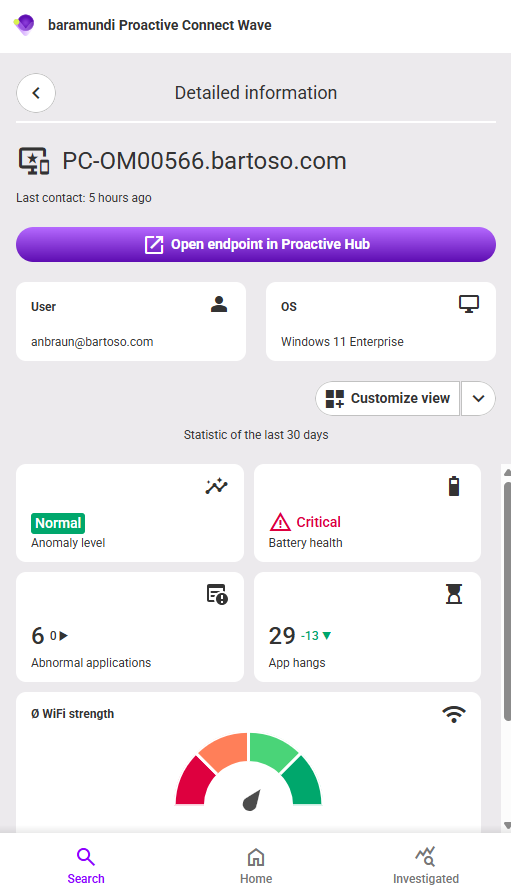
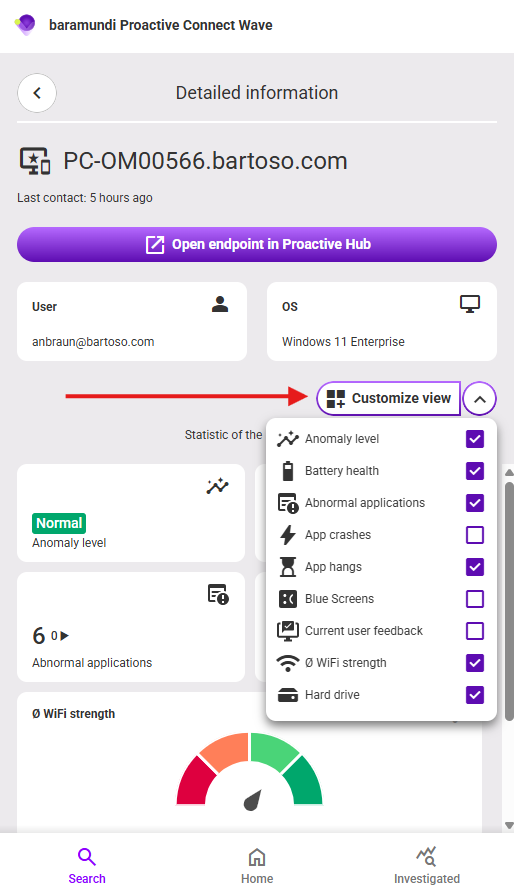
Which information is displayed about the endpoint can be individually customized via the menu Customize view . A message appears when no further items can be selected. The data relates to the period of the last 30 days.
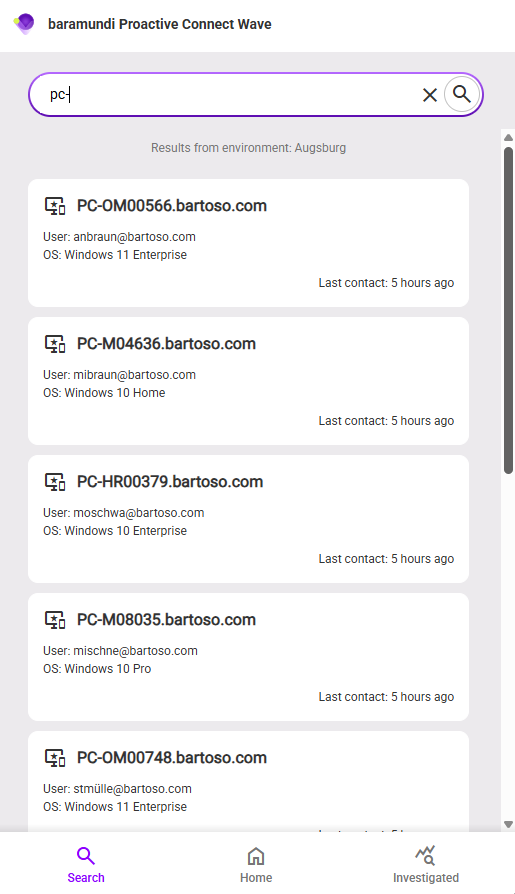
Search
Using the button Search it is possible to search all endpoints already accessed via the extension. The results are limited to the browser session; no data is stored beyond this.
Note: To get results, confirm the search with Enter or a click on the search icon.
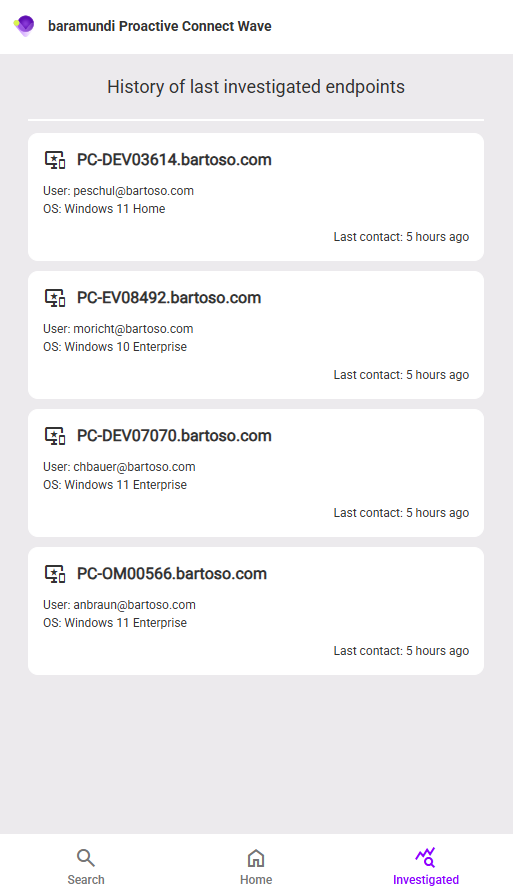
History
If you click the button Investigated all endpoints that you have accessed via the extension are listed. The results are limited to the browser session; no data is stored beyond this.