
Configure environment roles
Role overview
Company roles
There are two company roles, the Company Admin and the Company User. The Company Admin has access to user and role management. They can make changes to permissions and roles and invite as well as remove users. The Company User is a regular user and does not have access to user and role management.
Environment roles
Using the environment role, you control user permissions in our Proactive Hub. With it, you define access to specific features as well as visibilities for information and charts.
System roles
System roles are a special form of environment roles, so-called default roles. They can be identified by the lock symbol. They are available from the beginning and cannot be modified. Their configuration can be viewed under Configure environment roles. Editing and deleting are not possible.
Configure environment roles in user management
In user management, environment roles are listed in a separate tab by company.
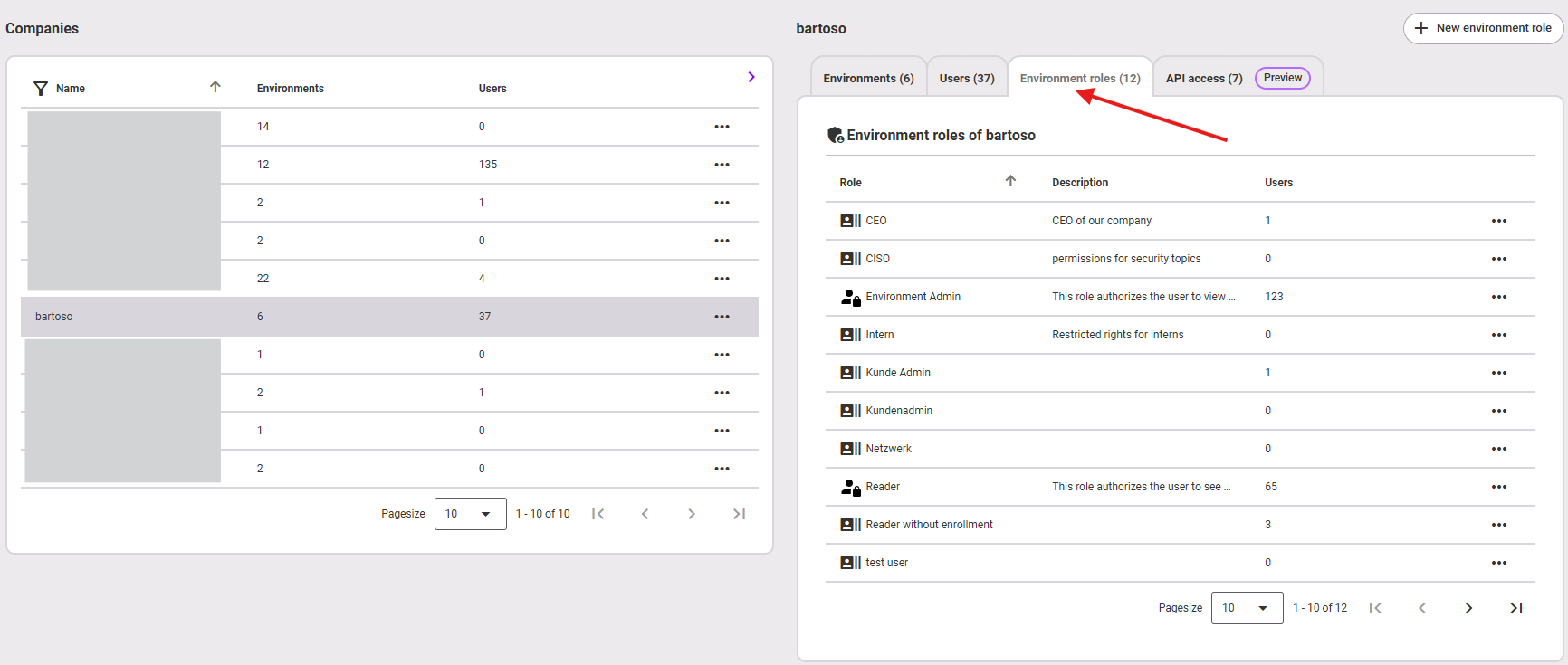
Only the features Edit (name and description) and Delete are available there. Furthermore, you have the option to view the role. If it is a system role (lock symbol), only the feature View role for Proactive Hub is available.
Configure environment roles
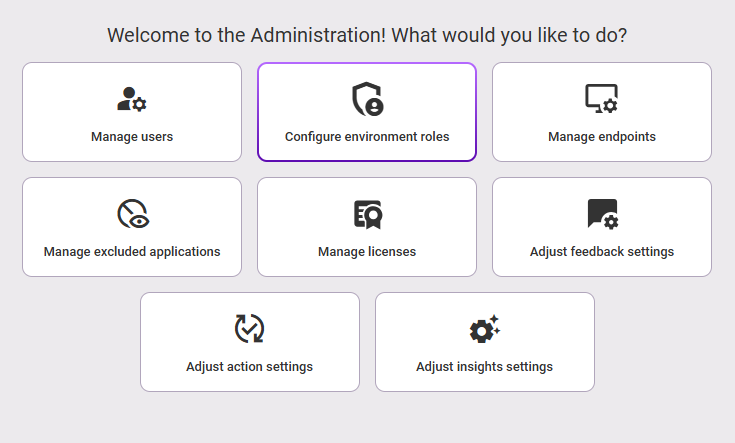
In the Administration section of our Proactive Hub, there is a separate area Configure environment roles. Here you will find all options to create, change, adapt content, or delete your roles.
Company selection
If you are responsible for multiple companies, after clicking on Configure environment roles, you will first go to the company selection. Select the company whose environment roles you want to configure.
Note
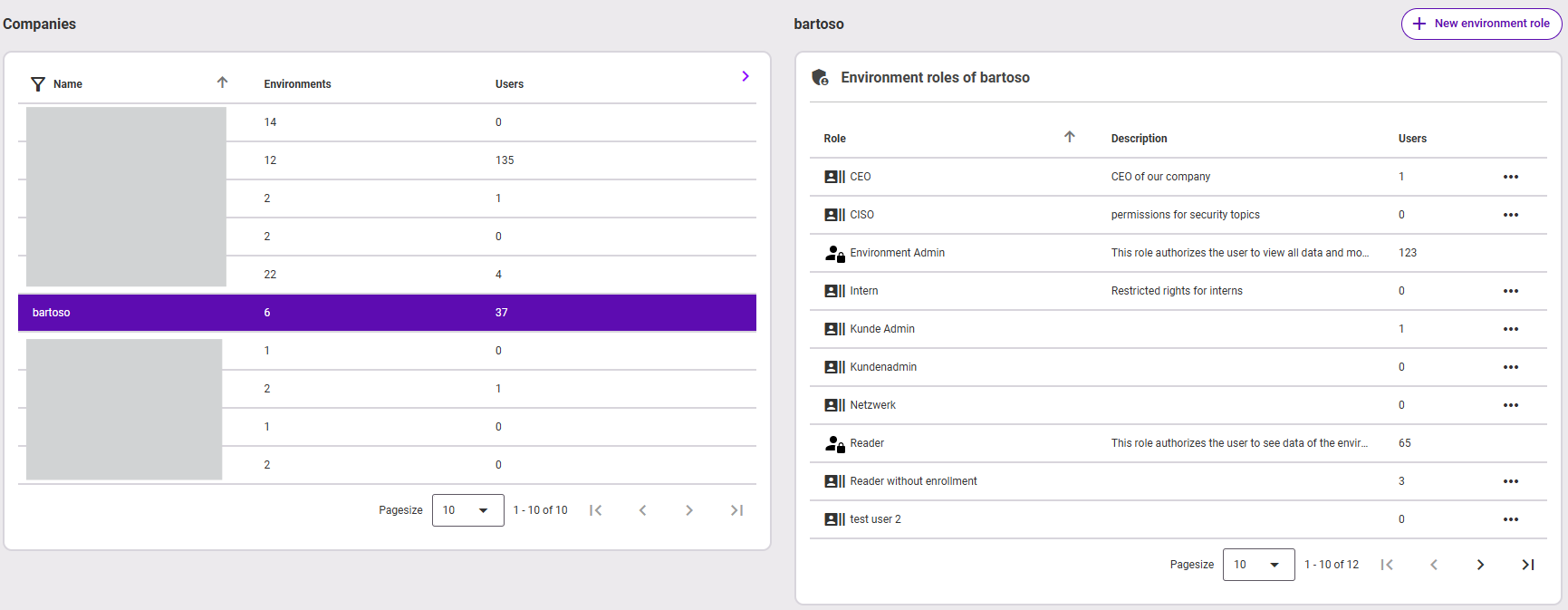
If you are responsible for multiple companies, you will see a split view: on the left, a list of available companies (for which you are authorized); on the right, the list of environment roles. If your responsibility is limited to one company, you will not see this split view.
Overview
The overview page shows you all environment roles for the selected company in a list.
Add new environment role
- Click the + New environment role button in the upper right corner.
- Give a role name and description.
- Confirm with Create Role.
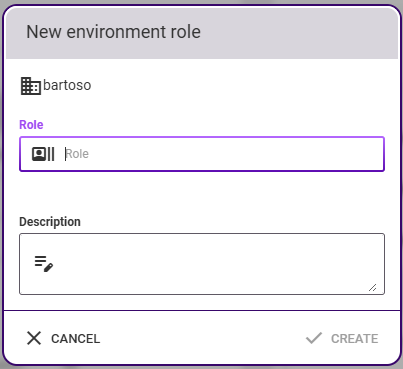
The newly created role now appears in the list. Click on it to configure the permissions.
Configure permissions of a role
Click on a role in the list. The details of the environment role will open on the right side of the window. If it is a system role, you can only view the permissions, but not edit them. If it is an environment role created by you, you now have the option to specify individual permissions for this role.
Select the functions you want to enable for the role by checking the boxes.
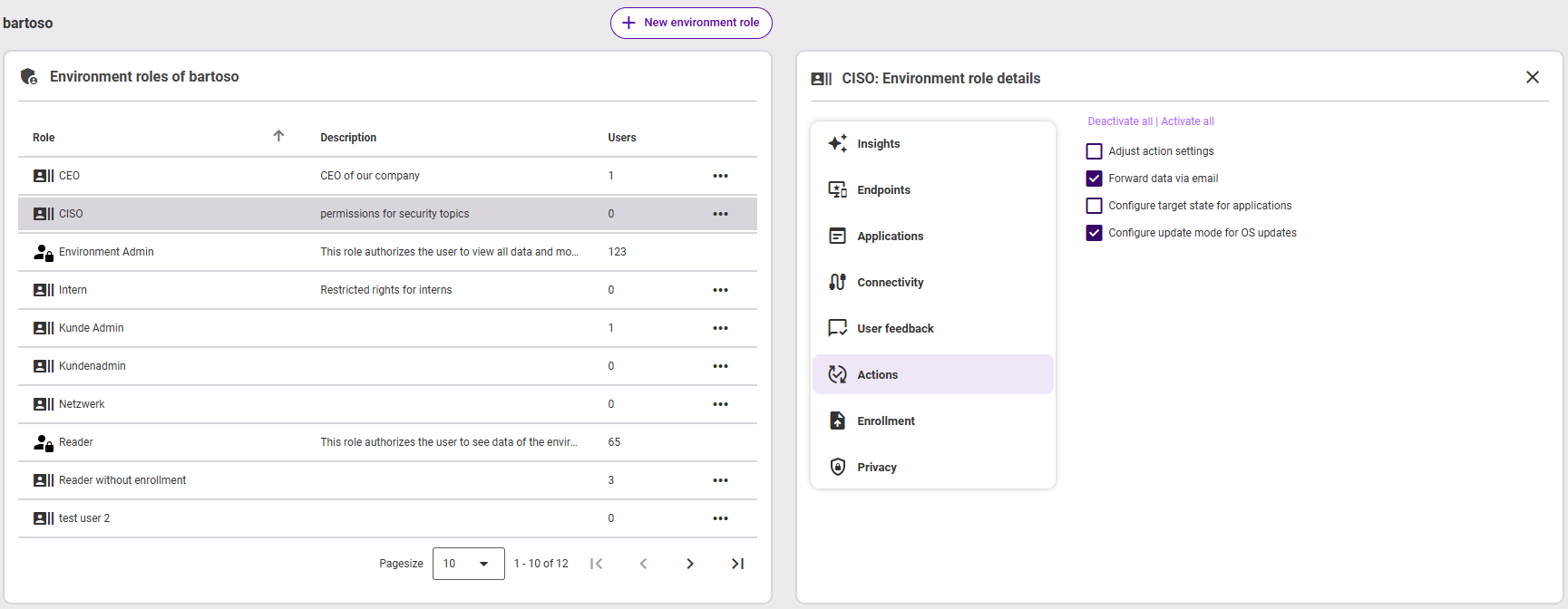
The following areas are available:
- Insights: Choose whether Insights should be visible for this environment role (the user) (Show Insights) and/or whether the user should be able to adjust Insights settings. Default settings are as follows:
- For the environment administrator (Environment Admin), both permissions are active.
- For a read-only role (Reader), only Show Insights is active.
- For custom roles (Custom Roles), both options are inactive.
- Endpoints: Choose whether the user should be able to open the Endpoint overview and additionally the Endpoint detail view.
- Applications: Choose whether the user should be able to open the Applications overview, open the Application detail view, and/or include or exclude applications.
- Connectivity: Choose here whether the user should see network names in the connectivity area. Additionally, you have the option to display the connection log.
- User feedback: If this box is checked, the user can configure global feedback settings.
- Actions: Check the boxes here if the user should be able to configure action settings in the administration area and/or forward feedback data by email (action Forward feedback, directly on the endpoint).
- Enrollment: This function must be activated if the user should have the right to enroll endpoints.
- Data privacy:
- Show user names Displaying the user name affects global search and the listing of users in the detail view in the Analysis area on the right in the chart Crashes/Hangs per AppShow application-based hardware statistics Enabling this function gives the user access to the following pages/components:
- Performance tab in the Application detail viewTable with endpoint details below the chart Endpoint detail view > Performance > CPU > CPU utilization
- Chart
- CPU utilization per application in the view
- Endpoint detail view > Performance > CPU
Assign environment roles to users
In user management, you assign environment roles to users. You can find instructions for this here: Manage users (and environments)