
Manage endpoints
Overview
This area of the administration is only displayed when you are in baramundi Proactive Hub and have the right to endpoint enrollment.
The Endpoint management has two primary functions:
- downloading and installing the baramundi Proactive Agent (formerly Argus Agent) using a token
- managing, enabling, and blocking endpoints
Note
You can only select environments here for which you are unlocked and for which you are created as a user with a user role that allows you to enroll endpoints. You can read more about permissions and roles here: Configure Environment Roles.
Downloading and installing the baramundi Proactive Agent using a token
To manage endpoints using baramundi Proactive Hub, you must first add the endpoints you want to manage to the system (enroll the endpoints). This is done by installing the baramundi Proactive Agent on the devices to be enrolled.
Important notice
If you have software in use at your company that performs SSL inspection, it is imperative to set an exception on the addressem-bex-prod-ioth-agent-euw.azure-devices.net.
Note
The token is only relevant for the initial roll-out of a new endpoint/device. It has no effect on the endpoints and their agents that have already been enrolled. If the token has expired and you want to create new endpoints, create a new token first.
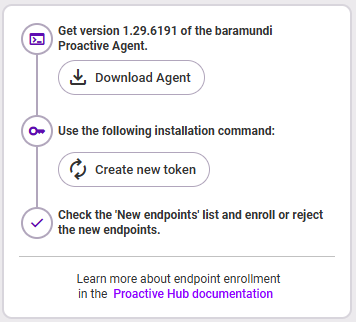
To do the enrollment, follow these steps:
- Download the latest version of baramundi Proactive Agent (Download Agent). Note: The baramundi Proactive Agent is also available via baramundi Managed Software.
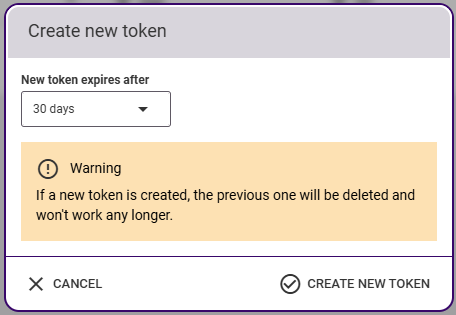
- Create a new token for the installation command via Create new token.
- Copy the newly created installation command and use it to deploy and install the baramundi Proactive Agent on the desired endpoints.
Link zu KB: KB103455 - Proactive Agent Installation bricht ab wegen fehlender Internetverbindung
All endpoints on which the agent has been successfully installed are then listed under New endpoints. From there, select all desired endpoints and activate them by clicking Enroll. After activation, the baramundi Proactive Agent is active on these endpoints and delivers data for each endpoint to baramundi Proactive Hub. If endpoints are already known during enrollment, see Re-enrollment of already known endpoints.
Note about the token
The token is used to unlock the installation of the agent. There is always a maximum of one active token, which means that the same token is used on each endpoint.
- Tokens are time limited (30, 90, ... days).
- The token can be activated and deactivated (to prevent new installations, for example).
- A token can be regenerated. This has the consequence that the old token then no longer works.
Enrollment and agent version update
With the appropriate administration authorization, you will see notifications about new and/or outdated endpoints as well as outdated agent versions in the Notification Center when you open the Proactive Hub interface.
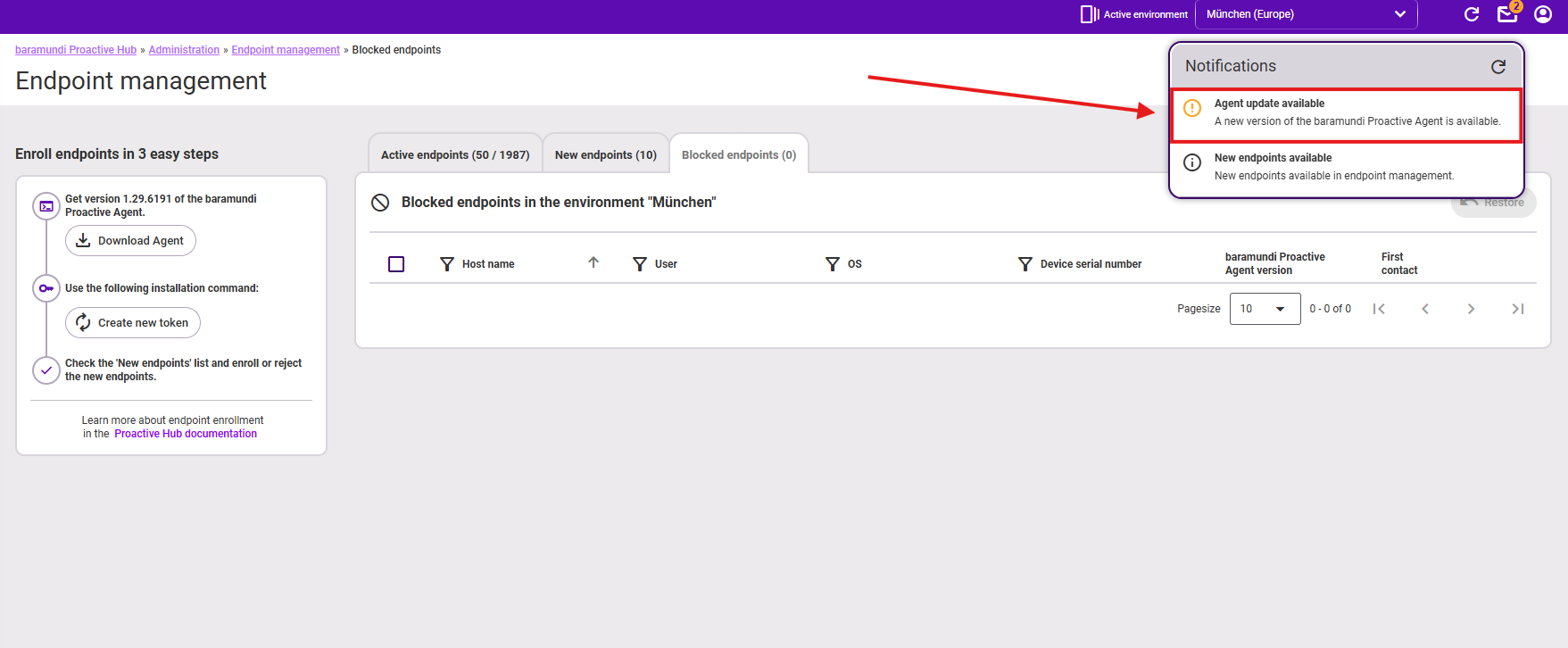
Note
If the logged-in user does not have the required authorization, neither the notifications nor the administration tile Manage endpoints will be displayed to view new or outdated endpoints and the agent versions.
Outdated agent versions can be seen in the list of active endpoints. They are marked there in the Agent version column. Hovering over the version number also indicates that it is an outdated version.
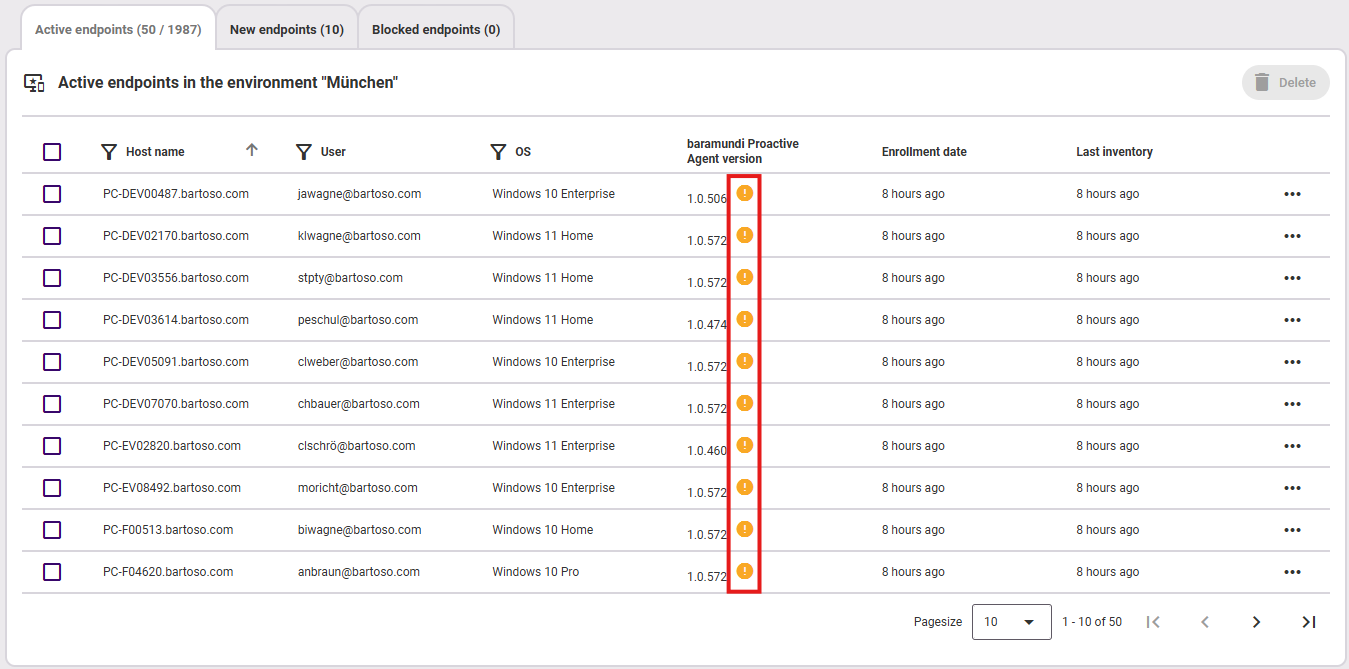
Important
If you want to use the full range of baramundi Proactive Hub functions, you need to install the latest Proactive Hub agent version.
To deal with new endpoints, see “Managing, activating, blocking and deleting endpoints”.
Managing, activating, blocking and deleting endpoints
According to the selected environment, the endpoints are then listed in the following tabs, depending on their current status:
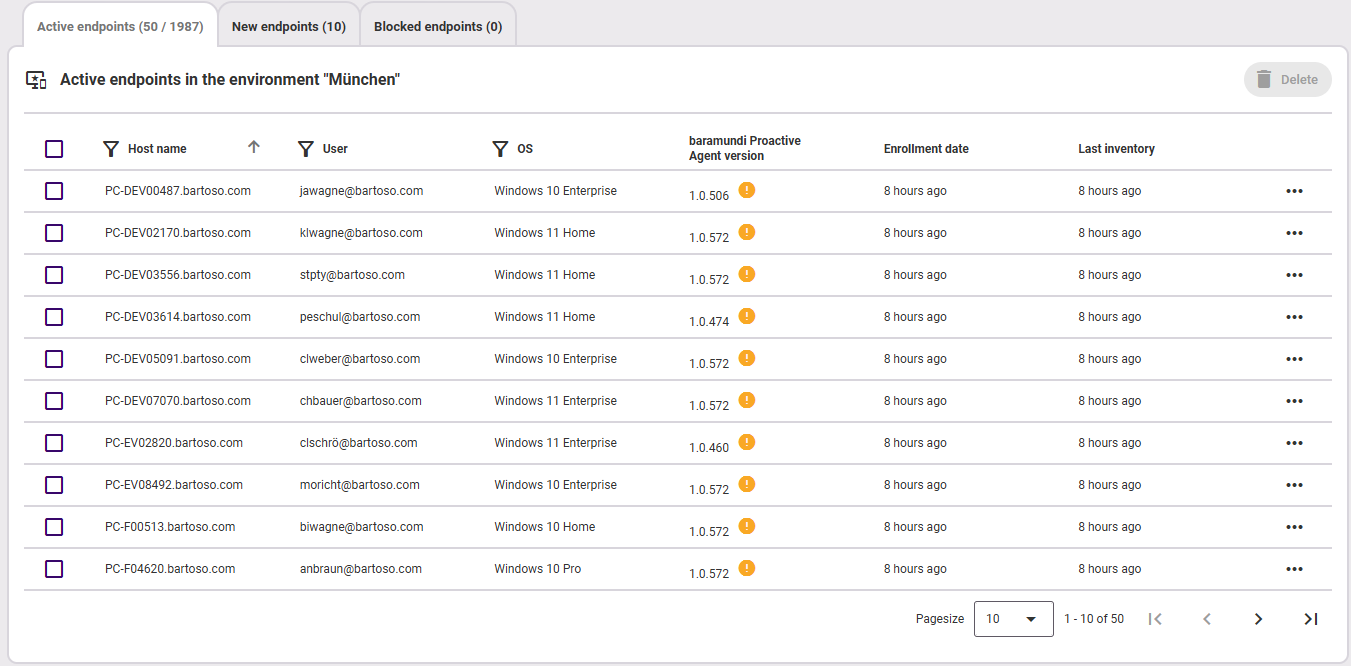
Active endpoints: This list shows you all active endpoints on which the Proactive Agent is successfully installed and which thus provide data to baramundi Proactive Hub. You can also delete endpoints that are no longer required here.
New endpoints: Here you can see all endpoints on which the Proactive Agent has been successfully installed. You have the option here to allow or block endpoints. These will then be moved to the respective Active/blocked endpoints tab. A message at the bottom right tells you if the move was successful.
Blocked endpoints: In this list are all endpoints that have been blocked, for example because they represent a security risk. Should this change, you also have the option to restore the endpoint here. As a consequence this endpoint appears again under New Endpoints.
Note
If the Proactive Agent is uninstalled on an endpoint and subsequently installed, this endpoint must be reactivated.
Re-enrollment of already known endpoints
If you want to re-enrol an already known endpoint in the system, first reinstall the baramundi Proactive Agent on the device (see above for procedure). The system recognizes whether an endpoint with the same host name has already been added. You can see this in the New endpoints tab using the Duplicate check column. If the endpoint has been identified as a duplicate, you have the option here of merging both duplicates or managing them separately in the system (Merge is activated by default). You can view the details of the endpoint to be merged via the Open in new browser tab icon.
When merging endpoints, all data collected with the old endpoint is transferred to the new one and is therefore retained. In addition, you do not need an additional license, as the merge process means that both endpoints only consume one license.
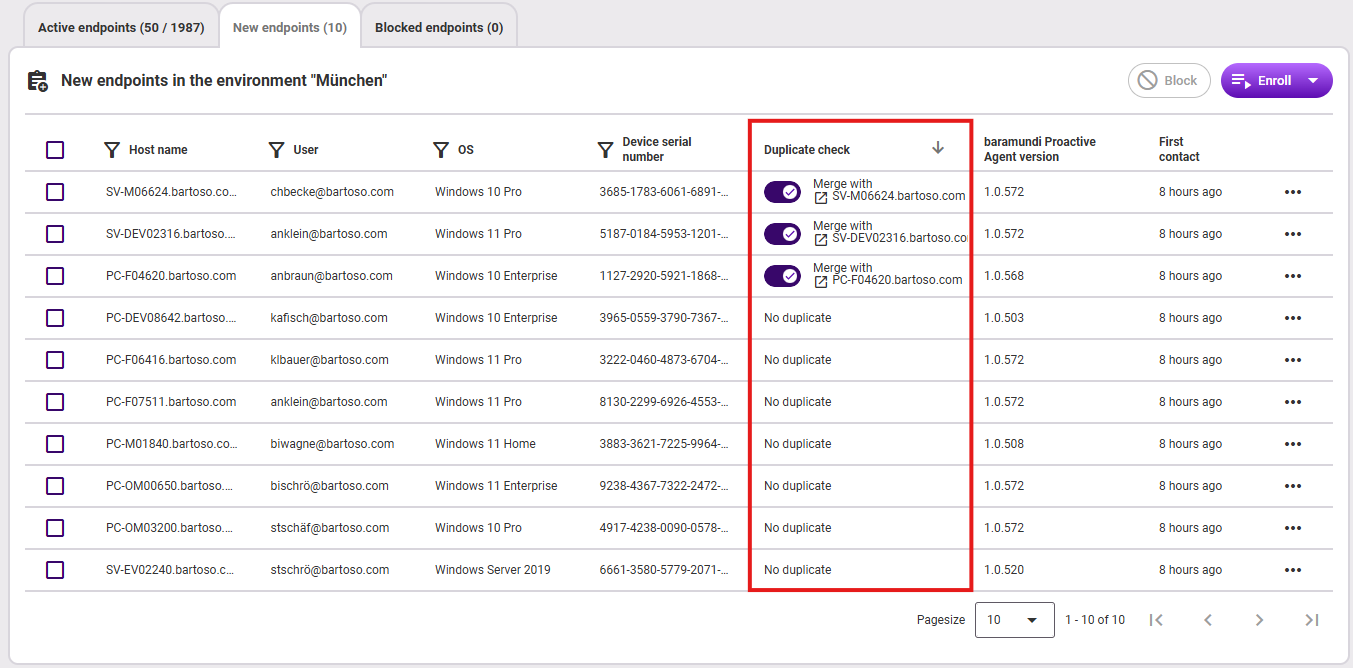
If you do not want to merge but want to keep both endpoints in the system in parallel, then set the switch under Duplicate check. The new endpoint is then added to the system, consumes its own license and does not take over any data from the old endpoint. The data of the old endpoint exists until it is deleted and then for 90 days after deletion.
Use cases (examples):
- Merge: An employee's laptop is reinstalled due to technical circumstances. The Proactive Agent must therefore be reinstalled and the endpoint re-enrolled. However, the old data is still attributable to the same endpoint and no further unnecessary license should be consumed in order to save costs.
- Do not merge: Due to a bug or error on the device, the data should be collected from a new starting point.
Deleting endpoints
Deleting endpoints is only available in the Active endpoints tab. Deleting an endpoint means that this endpoint is removed from the list of active endpoints. The Proactive Agent can then be uninstalled from the endpoint by the administrator. The deleted endpoint will then no longer send data to the cloud environment.
Note
To reactivate a deleted endpoint, the agent must be unrolled and installed on this device again.
Data visibility: The data of the deleted endpoints that was collected up to the time of deletion remains in the statistics until the deletion date is outside the timeframe selected in the endpoint overview.