
Adjust feedback settings
User Feedback offers you the opportunity to obtain feedback from the users of your managed devices. You receive feedback on the overall work experience with the device as well as, optionally, written feedback. The results are presented to you in various charts and provide valuable information that can help improve your end users' user experience and uncover device vulnerabilities.
Note
This section is only visible in Administration if the permission Configure environment roles was granted to the user under User Feedback > Configure global feedback settings.
General
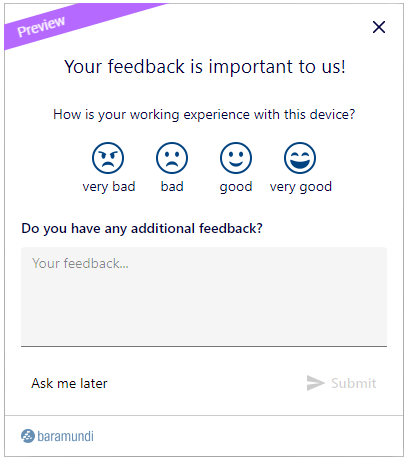
If the feedback survey has been activated in the Feedback Settings (Administration > Adjust feedback settings), the survey window appears for all users at the selected interval. The feedback window always looks like the figure below. It appears for users in the bottom right of the screen. Via the window, users have the opportunity to choose between the predefined smileys by clicking the one that corresponds to their work experience. In the free text field below, there is also the opportunity to send further feedback. This can be viewed and evaluated in the Endpoints area as well as in the Endpoint detail view on the User Feedback tab.
Main Functions:
User Feedback offers you:
- Regular feedback collection on all endpoints
- Configuring settings to personalize the feedback collection
- Evaluating and monitoring user feedback directly in the baramundi Proactive Hub interface
Feedback conditions
The feedback window only appears if feedback collection is enabled in the Feedback Settings (Endpoints > User Feedback) for the respective environment. Furthermore, it does not appear for users if ...
- an application is running in full screen mode on the main screen,
- a PowerPoint presentation is active on the main screen,
- the device is in screen saver mode or locked,
- presentation mode is manually activated, or
- a new user logged in to the device for the first time less than an hour ago.
Postponing the query
In addition, users always have the option to postpone the query until a later time. To do so, they click either Remind me later, which triggers a new query after two hours. Alternatively, they click the X for Close in the top right corner. This action postpones the query by 24 hours. If the query window is closed three times within a week via X, it will not appear again until the following week.
Feedback survey settings
You can find the User Feedback settings under Administration > Adjust Feedback Settings.
Activation/Deactivation
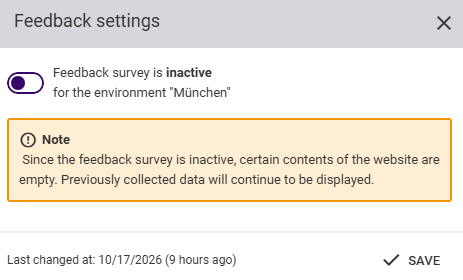
To use the user feedback feature, you must activate it for the environment in which you want to gather feedback. You can deactivate the survey in the same way if you do not need it.
Schedule
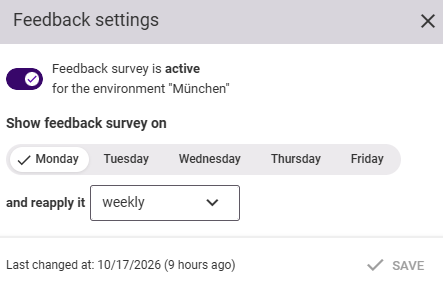
Then select a desired schedule (day of the week, frequency) for your survey and save it.
Previews
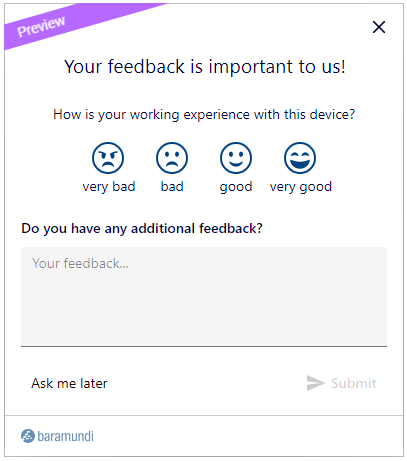
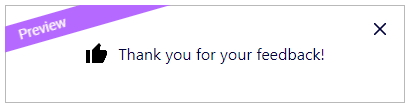
Below the settings for the schedule, you will find two preview images. They show you the appearance of the feedback survey window and the confirmation when the feedback has been sent successfully. Both windows are currently not customizable.
Checking user feedback in the baramundi Proactive Hub interface
You can find the results of the user feedback in various places in the baramundi Proactive Hub interface in the Endpoints section. They are presented there in different ways.
Thus, under the overview tabs of the Endpoints and Endpoint detail view, you will find a brief summary of the most important feedback results. You can find the detailed analysis under Endpoints/Endpoint detail view > User feedback.
- User feedback in the Endpoints summary
- User feedback in the Endpoint detail view