
Manage excluded applications
In Proactive Hub, there is an option to exclude certain applications that exhibit noticeably high crash rates from the calculation of stability scores. This can be useful, for example, in the case of vendor limitations or outdated legacy systems, as these applications distort stability charts and ratings and distract from actually resolvable issues.
Note
This administration area is only visible to users with the appropriate permissions. By default, it is only active for the role Environment Admin. You can configure the permissions in the area Configure environment roles and there under the respective role in the area Application.
Overview
In the area Manage excluded applications you will find two overviews:
- Excluded
- Reactivated
Excluded
In this table, you can see all applications excluded up to the current point in time, sorted alphabetically by default according to the column Application. Here you'll find an explanation of the table functions.
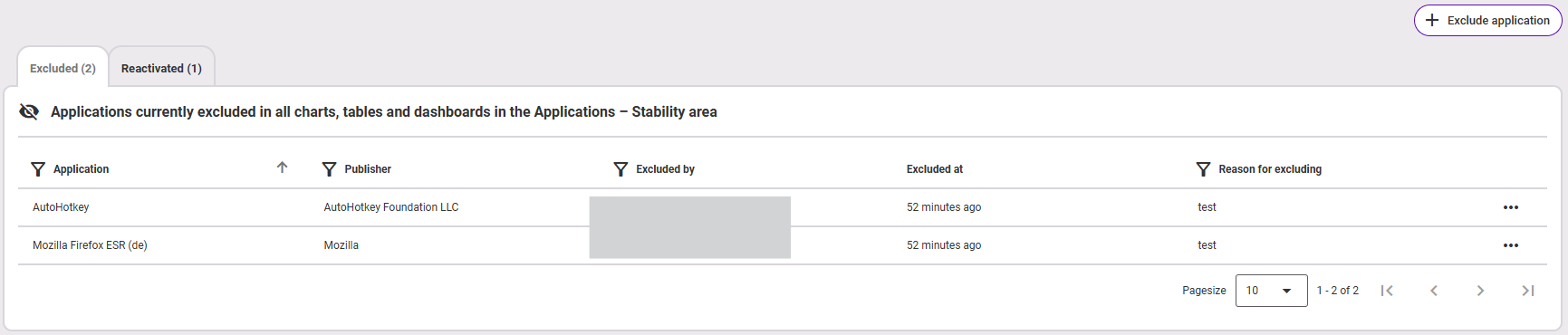
Excluding an application means that all stability data collected up to the time of exclusion will be irrevocably deleted. From that moment on, the data will no longer be included in evaluations. Furthermore, no new stability data will be recorded for the excluded application until the application is reactivated. This applies to all associated endpoints across the entire selected environment.
The following information is available to you in the table:
- Application name (sorted alphabetically)
- Publisher (of the application)
- Excluded by (user)
- Excluded on (timestamp)
- Reason for exclusion
To exclude additional applications, use either the button + Exclude application, which takes you directly to Applications > Stability. Alternatively, navigate to the detail view of an application, scroll to the analysis area, and exclude the application there using the Actions button.
Reactivated
In this table, you can see all applications reactivated up to the current point in time, sorted alphabetically by default according to the “Application” column.

If you want to include an excluded application in the evaluations again, you reactivate it. From that moment on, its data will be included in the calculations again. This applies to all associated endpoints across the entire selected environment.
The following information is available to you in the table:
- Application name (sorted alphabetically)
- Publisher (of the application)
- Excluded by (user)
- Excluded on (timestamp)
- Reason for exclusion
- Reactivated by (user)
- Reactivated on (timestamp)
- Reason for reactivation
Using the features in Proactive Hub
You have the option to exclude or reactivate applications at various places in Proactive Hub, for example via the three-dots menu in the stability measurement table or via the Actions button in the analysis area of an application's stability section.
Note
These functions are only visible to users with the corresponding permission. By default, it is only active for the role Environment Admin. You set the permission in the area Configure environment roles and there for the respective role in the area Application.
Exclude an application
When you select this function, the following dialog window opens:
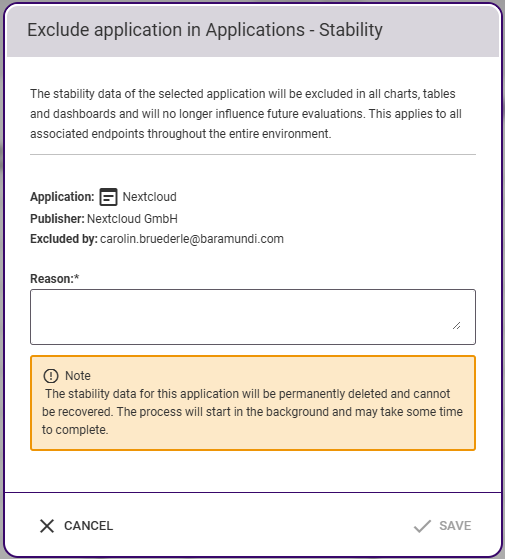
- General information: Explanation of the scope of excluding the application within the Proactive Hub charts
- Note: The colored note warns that excluding an application will delete all previous stability data and that it cannot be recovered.
- Application information: Here you can see the name, publisher, and the logged-in user.
- Reason (required field!): If you want to exclude the application, you must enter a reason. This serves for documentation and traceability.
To exclude the application, fill in the reason and then confirm with the button Save.
Reactivate an application
Via the function View excluded application, you will also find the function to reactivate this application.
To reach this function, go either via the three-dots menu of the excluded application in the stability measurement table (see fig.) or via the actions button in the stability analysis area of the same application.
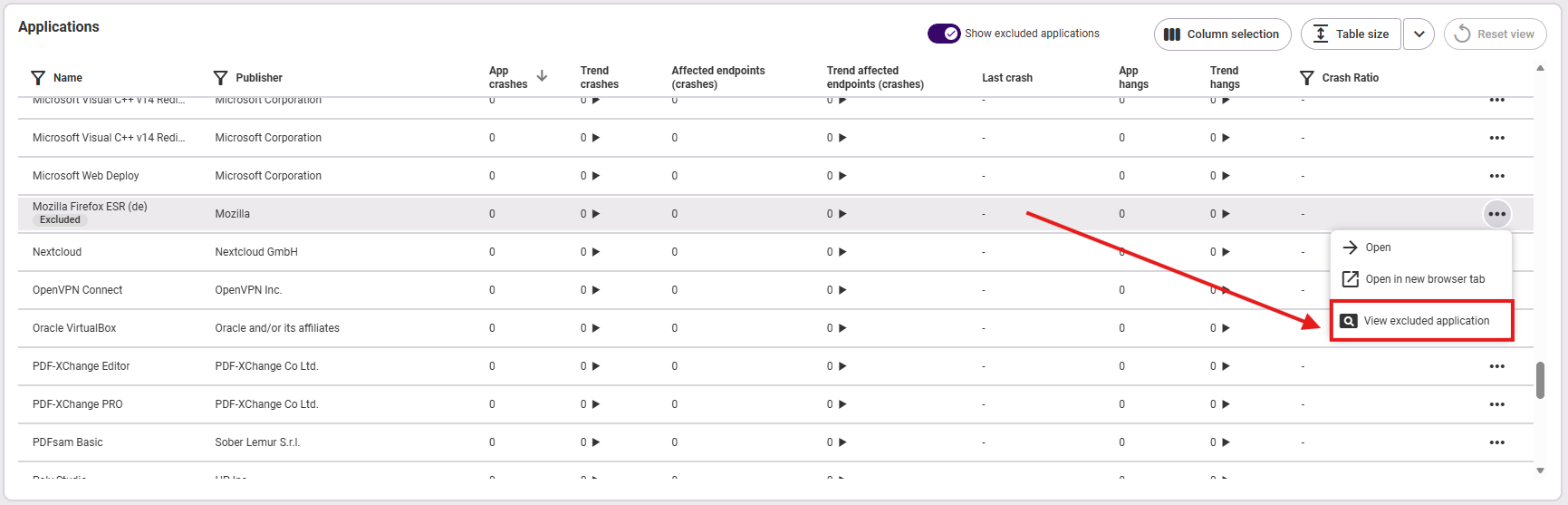
As soon as you select the option View excluded application there, the following dialog window opens:
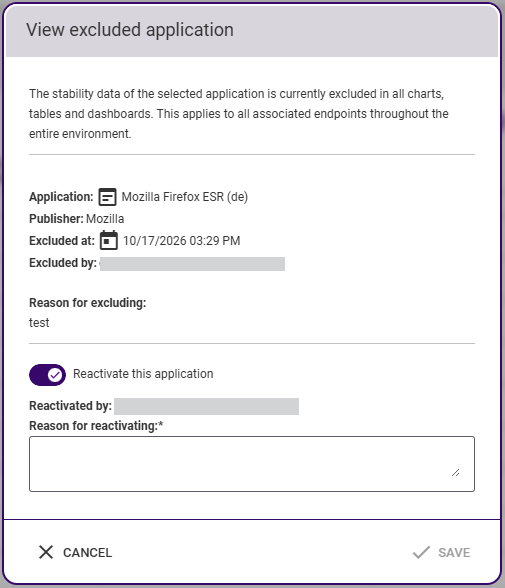
- General Information: Explanation of the impact of the application's current exclusion within the Proactive Hub charts
- Application Information: You can see the name, publisher, time of exclusion of the application, which user performed the action, and the reason.
- Reactivate this application (Toggle button)
- Reactivated by: The current user is entered here.
- Reason (required!): If you want to reactivate the application, you must enter a reason. This serves for documentation and traceability.
To reactivate the application, enable the toggle button, fill in the reason, and then confirm with the button Save.