
Adjust action settings
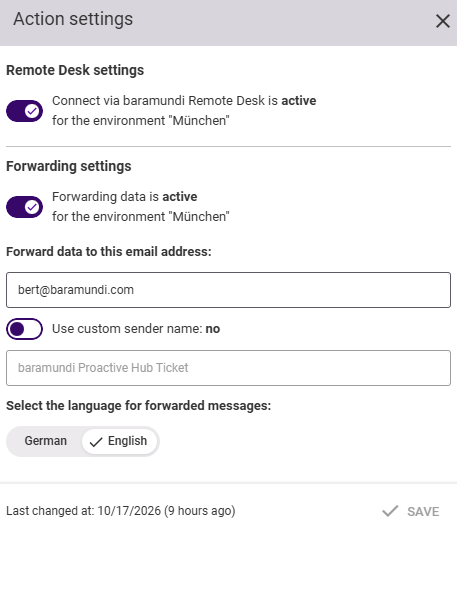
In this section, you can configure the Forwarding settings and the Remote Desk settings.
Note
This administration area is only visible if the permission Configure action settings is granted in the administrator role permissions.
Remote desk settings
The Remote Desk function allows you to connect directly to the endpoint. This works if a baramundi Management Agent is installed on the endpoint or if it is managed by the baramundi Management Suite.
If you have admin rights, you can use the slider to enable or disable the Connect via baramundi Remote Desk function for the entire environment. If it is disabled, this function is switched off for all users in the entire environment.
Forwarding settings
This setting activates the sending of data from the selected environment. The transmission serves as an email ticket and can, for example, be linked to the destination address of an IT management system or ticket system.
Use the first slider to decide whether you want to allow data forwarding for all users in this environment.
If you activate the feature, follow these steps:
- Enter a valid email address as the recipient, for example, your IT ticketing system.
- Use the second slider to decide whether you want to enter a custom sender name. By default, “baramundi Proactive Hub Ticket” is entered as the sender.
- Then select the language in which the email content should be displayed. This language selection does not affect the language of your app interface. For example, if your app interface is set to German and you select English here for the email content, you will see the content in German in the preview before sending, but the sent email will appear in English.
- Confirm the changes by clicking Save.
Using the Feature from baramundi Proactive Hub
You can send data from the environment at various points in our Proactive Hub.
- Endpoints > User Feedback
- Endpoint Details > User Feedback
- Endpoint Details > Performance
- Application Details > Stability