
Proactive Connect (API)
Below you will find instructions on how to configure the API and create API clients.
Additional ResourcesCode examples and detailed instructions on how to use the API can be found here: Getting Started with the Proactive Connect API |

Activating API access
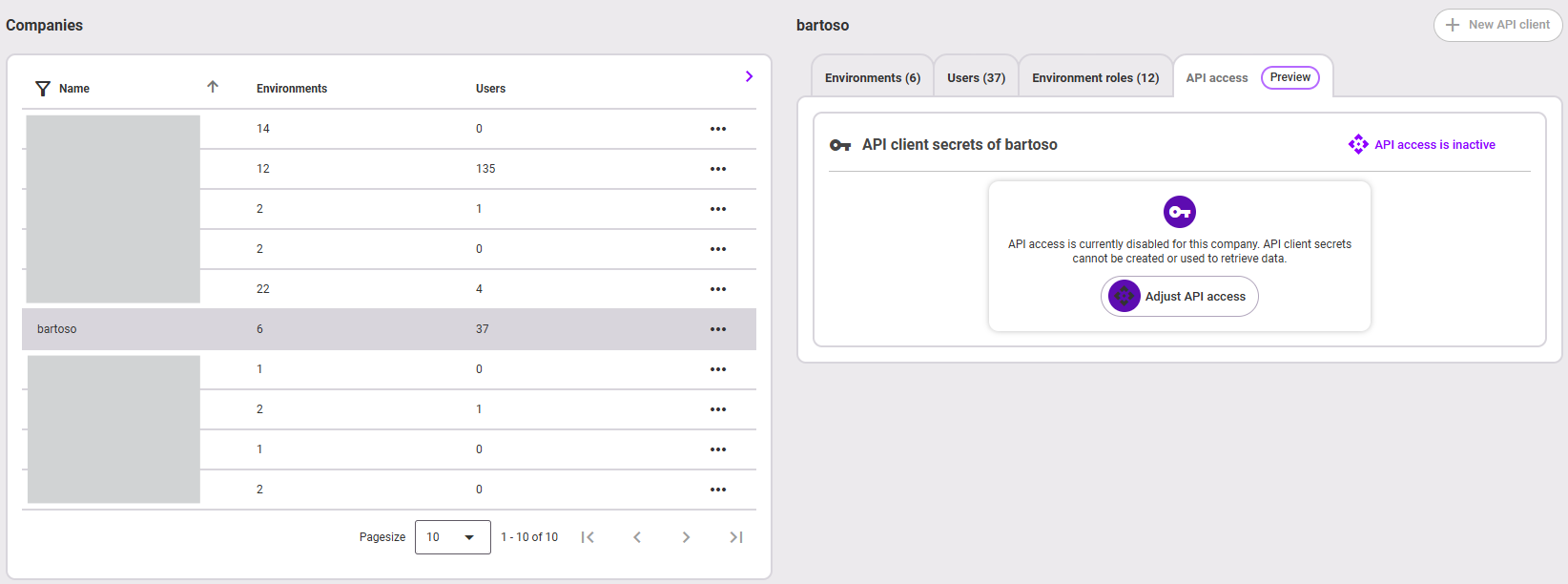
First, select the company for which you want to activate the API. Then click on the API access tab on the right. If API access has not yet been activated for this company, the message shown in the image above will appear. Click on Adjust API access here.
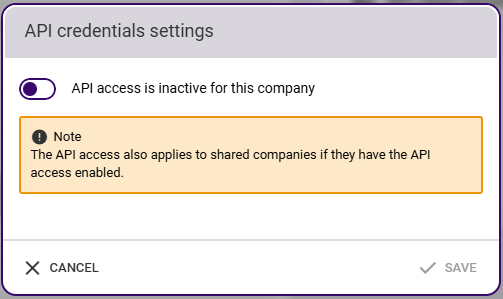
Click the button to activate API access for this company and then save.
Note: The yellow note for the inactive status warns you not to carelessly set a company with active API access to inactive. The note that appears when you set API access to active warns you that API access also applies to all shared companies that have also enabled API access.
Create a new API client
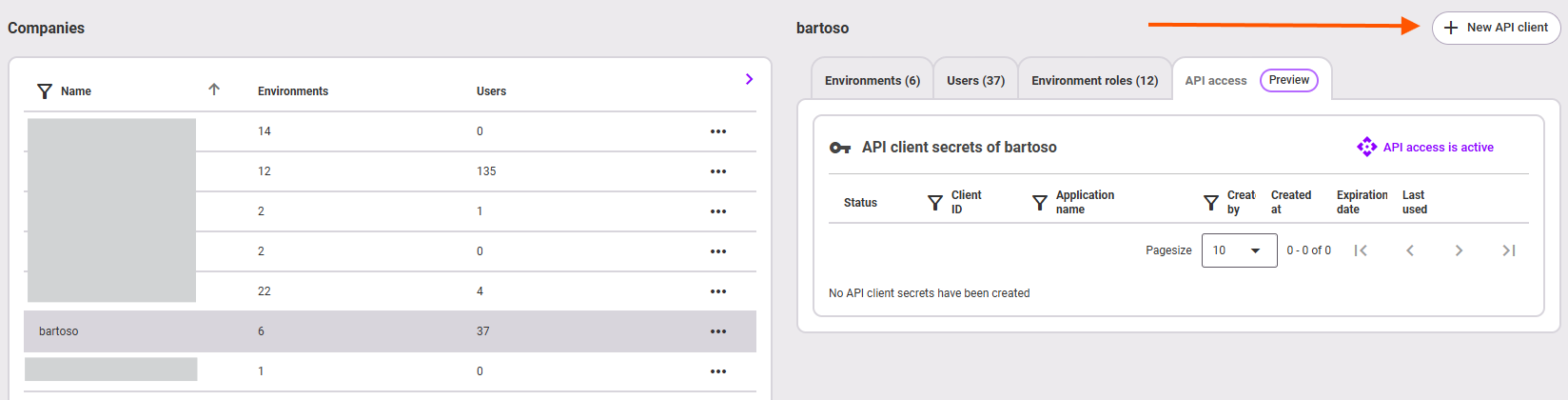
To create a new API client, click + New API client in the upper right corner after enabling API access.
Security warning
It is strongly recommended that you create a separate API client for each external system that needs access to Proactive Hub data. For security reasons, never use one API client for multiple systems.
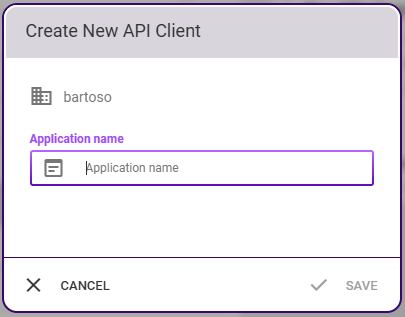
Enter a meaningful name for the API client. The name is only used to make it easier to recognize in the administration interface. Click Save and wait until the system has created the API client (a loading bar will appear at the top of the application). This process can take up to one minute.
The following window shows you the Client ID and Client Secret generated by the system.
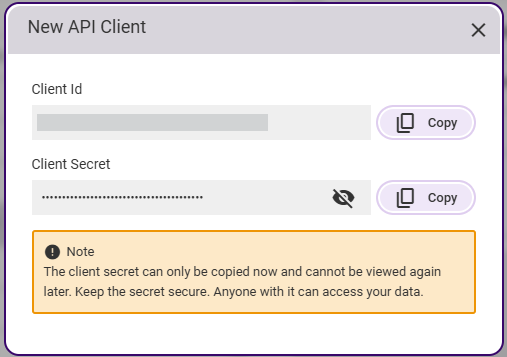
Attention
Be sure to copy the client secret to a safe place at this point. It will not be displayed later and cannot be copied retrospectively. Please also note that anyone in possession of the client secret can access your data.
Then close the window. You will now see a list on the right-hand side showing the API clients you have created so far, along with their status, client ID, application name, who created them, when they were created, when they expire, and when they were last used. The three-dot menu at the end of each line gives you the following options:
- Open the details of the API client,
- Renew the client secret (note: Renewing the client secret cannot be undone!)
- Assign environments to the API client (opens a separate window for assigning environments and environment roles)
- and revoke API access (delete the API client).
Assigning environments and roles
To get to the screenshot below, select one from the list of all company APIs and click on it. You will then see the list on the left-hand side.
Note
Clicking on the entry in the Client ID column copies it to the clipboard. Clicking on the content of the other columns opens the details as shown in the image.
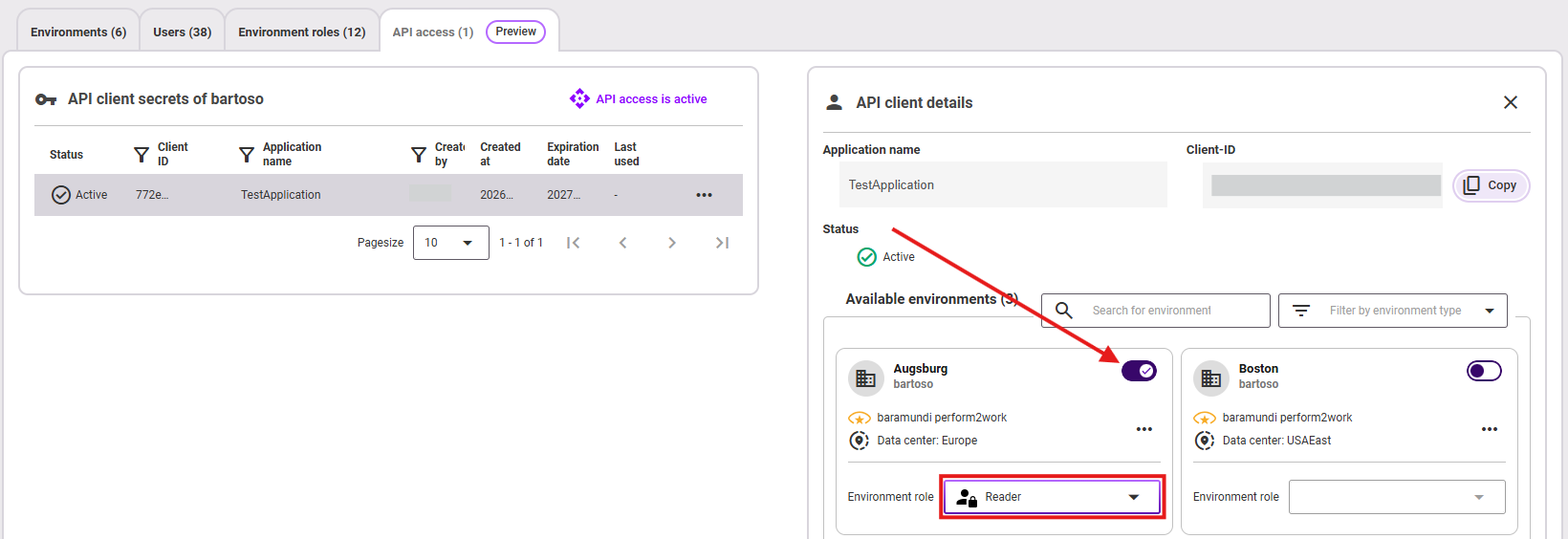
Here you also have the option of adding environments to the client in the API client details by activating the switch with the key icon and selecting the desired environment role.