
Missing Wi-Fi Data on Windows 11 (24H2)
With the update to Windows 24H2, Microsoft has introduced new privacy features. These include changes to how apps can access the list of available Wi-Fi networks—information that can be used for location determination.
Important
If location access is disabled, the "Proactive Agent" cannot collect location or Wi-Fi security information. As a result, important network data will be missing in baramundi Proactive Hub.
How to Ensure Everything Works
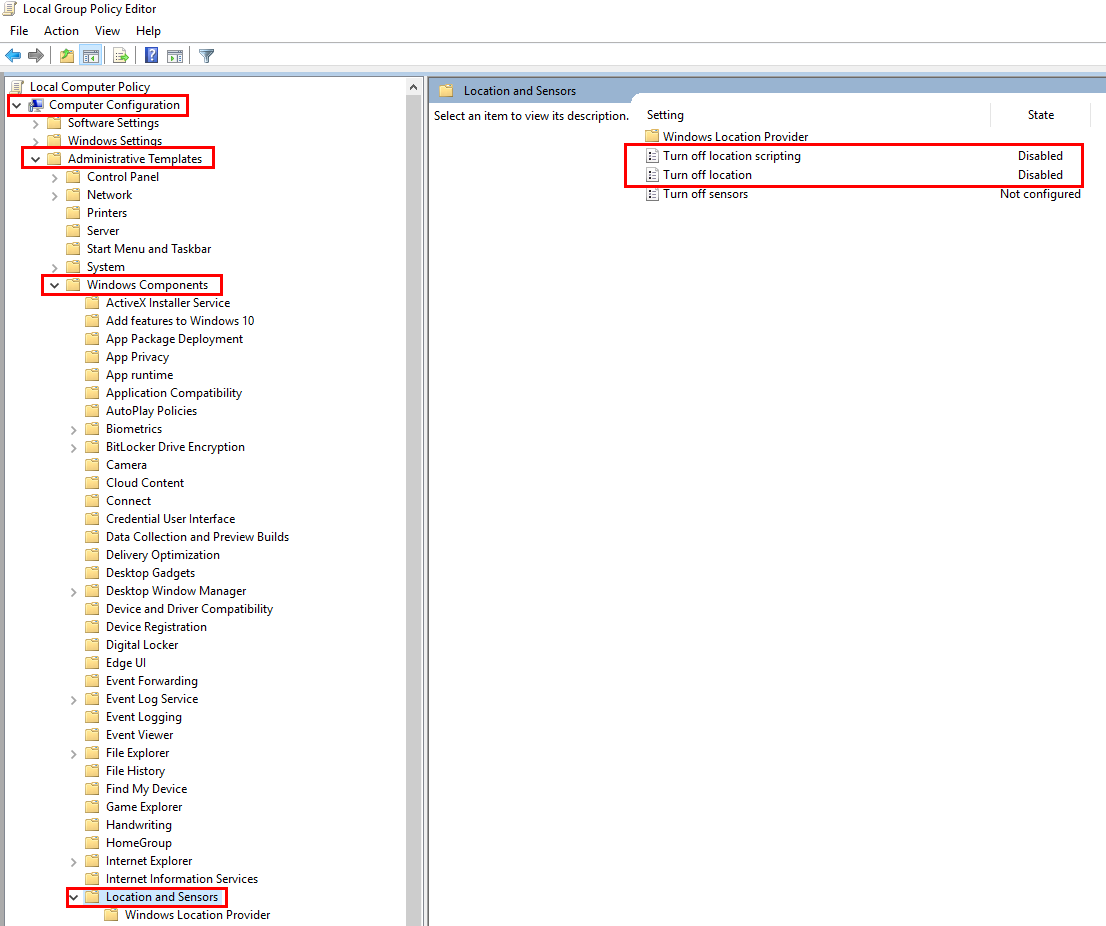
1. Adjust Group Policies (GPO)
If you have disabled location access via GPO, you can define exceptions for specific applications:
Computer Configuration → Administrative Templates → Windows Components → Location and Sensors
Set the following policies to "Disabled":
- Turn off location
- Turn off location scripting
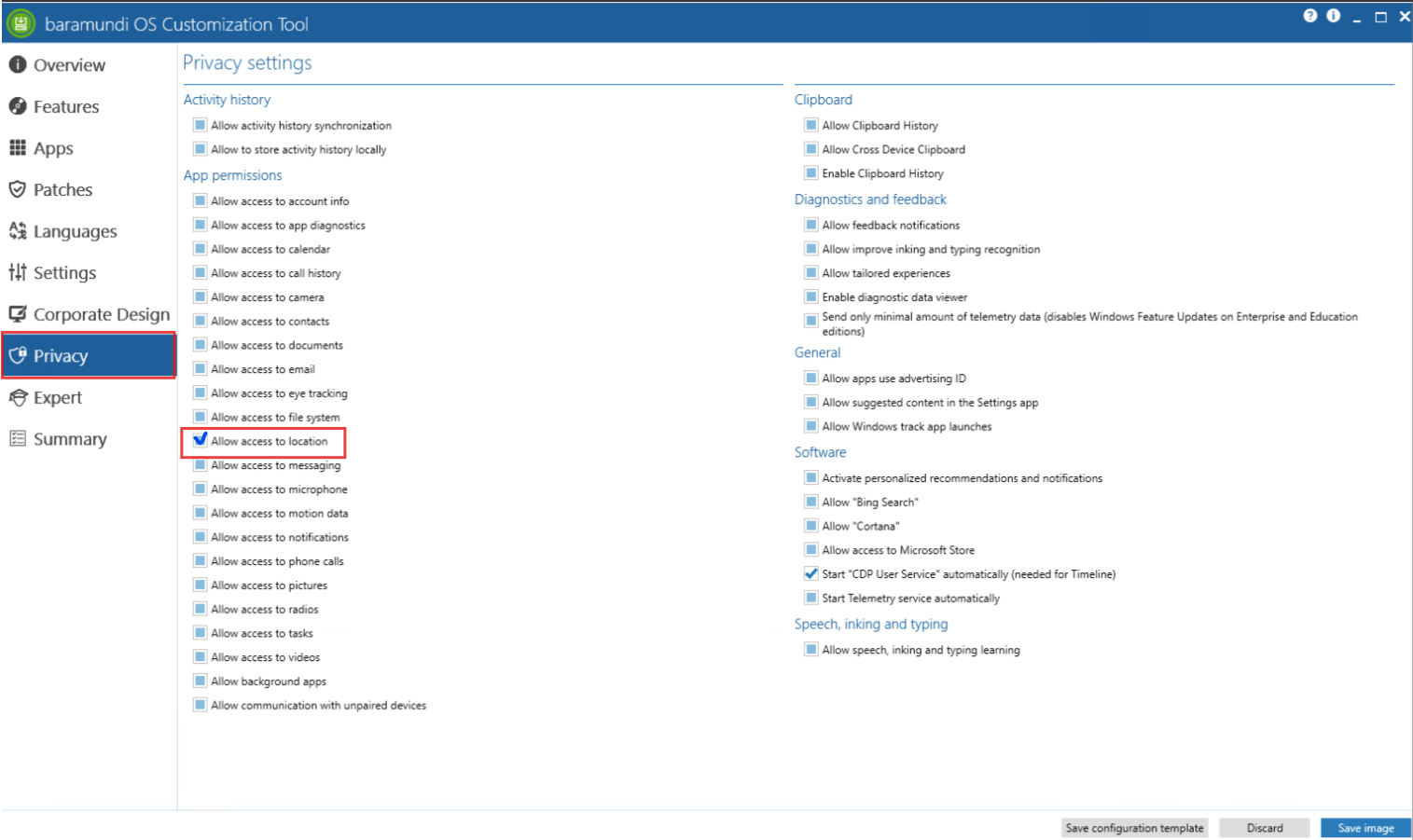
2. baramundi OS Customization
If you configure Windows privacy settings via baramundi OS Customization, make sure that location access is allowed.
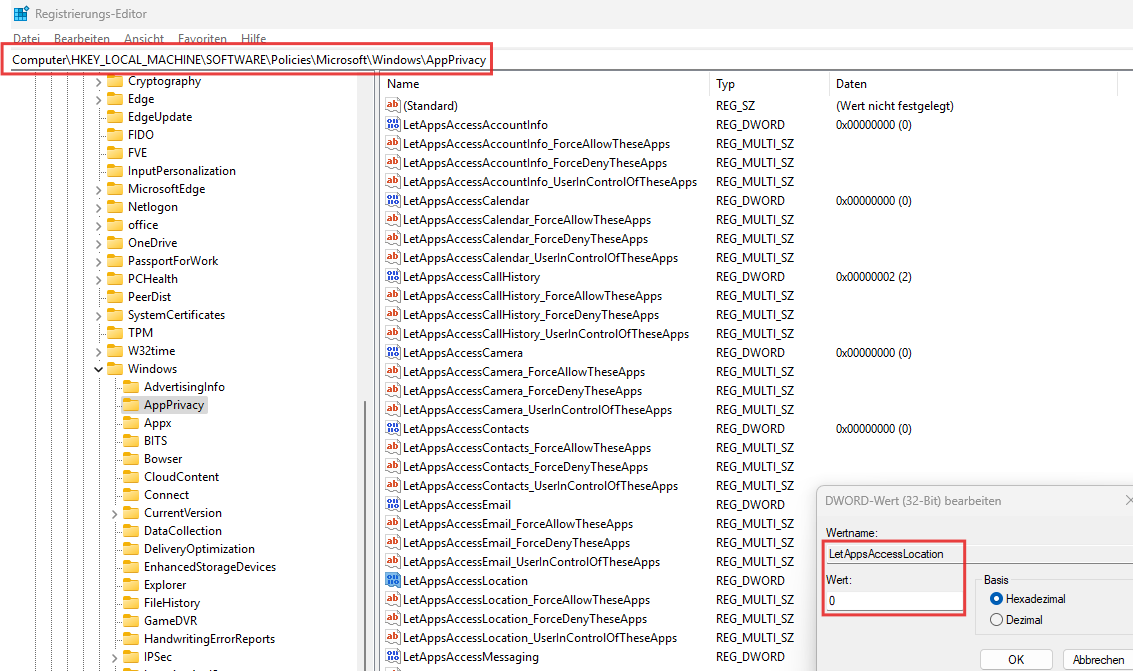
3. Check Registry Entry
Verify the following registry key:
HKEY_LOCAL_MACHINE\SOFTWARE\Policies\Microsoft\Windows\AppPrivacyThe value of LetAppsAccessLocation must be set to 0 (enabled).
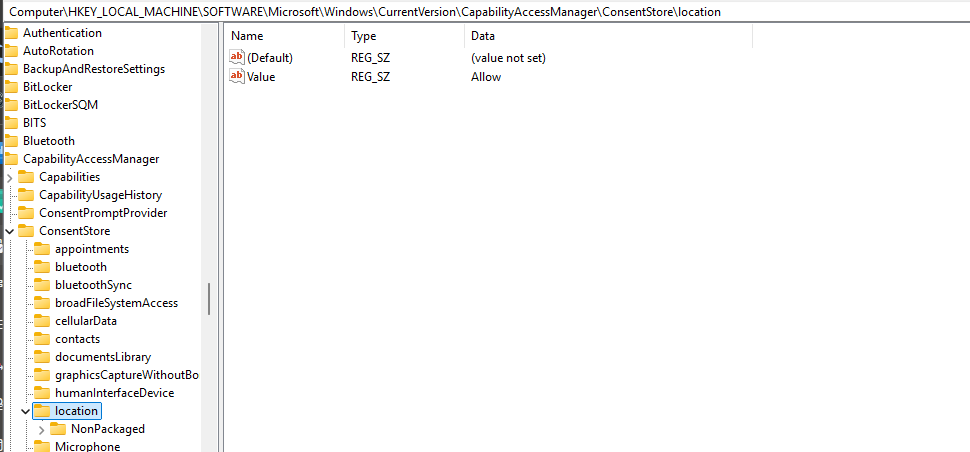
HKEY_LOCAL_MACHINE\SOFTWARE\Microsoft\Windows\CurrentVersion\CapabilityAccessManager\ConsentStore\locationSet the Value to Allow.
Summary
- Adjust GPOs if necessary
- Check OS Customization settings
- Set registry value "LetAppsAccessLocation" to 0
Note
Please be aware that end users can change these settings themselves!
If Wi-Fi detection does not work despite correct configuration, please contact our baramundi support team!
Last updated: 11/11/26, 2:02 PM